Recommended for first time user iREAP POS

In iREAP POS Pro, user management is essential, especially when your business has multiple employees. By adding new users, each staff member can have their own account, allowing activities such as transactions and data management to be recorded more accurately and in a more controlled manner.
Additionally, the multi-user system allows you to assign different access levels based on roles, such as cashier, supervisor, or manager. Within one store (one device), multiple users can log in using different email accounts, and a single user can also have access to more than one store.
You can add a new user either through the Web Admin or directly from the device. However, for more complete configuration, it is recommended to use the Web Admin and log in as an Administrator.
ALSO READ:
How do The Team or Store Staff Record Attendance
ALSO READ:
How to Assign Web Admin Access Rights to iREAP POS Pro Users (User Management)
Open browser and go to www.ireappos.com

Click Login iREAP POS Pro
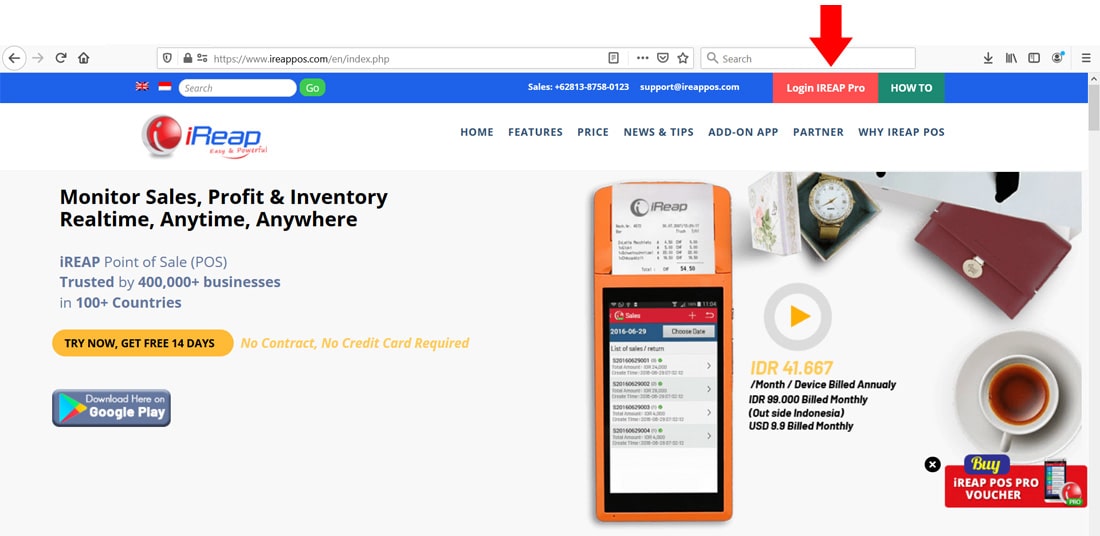
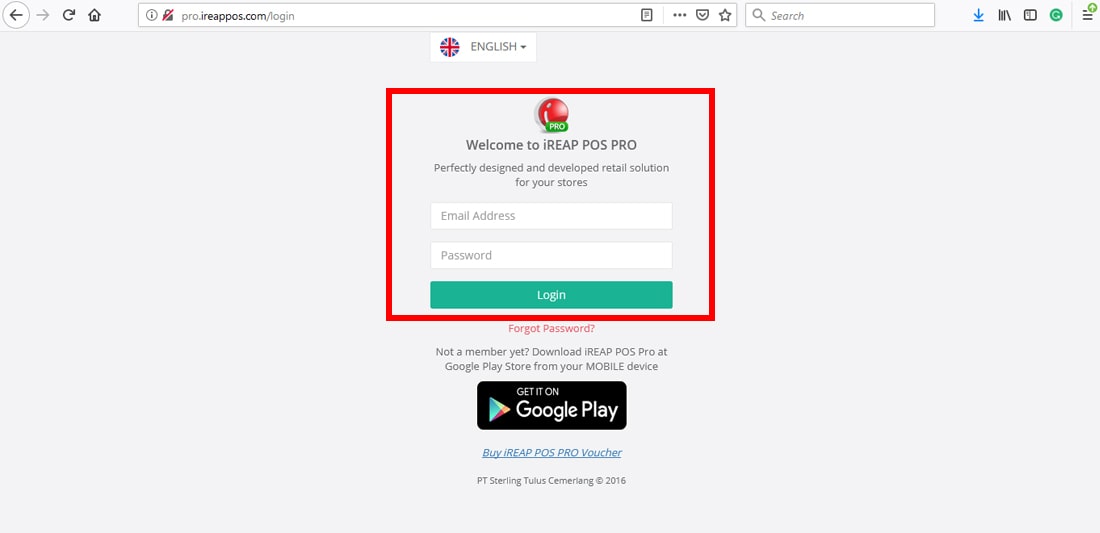
Or you can login from pro.ireappos.com/login
Enter your email address and password with your administrator account
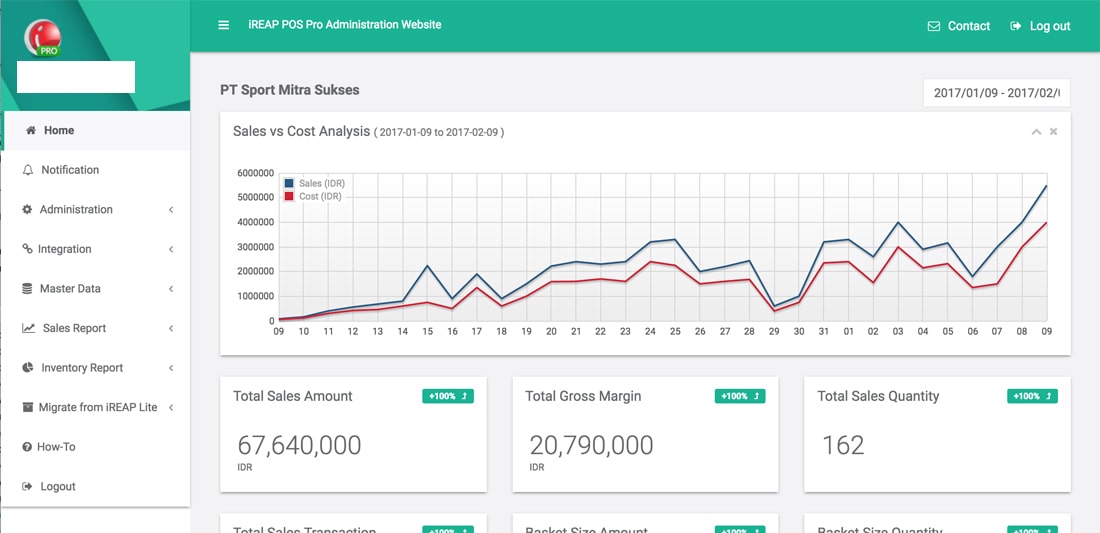
Go to main page of your iREAP POS Pro
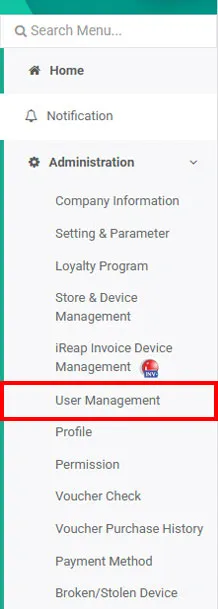
Go to menu Administration > User Management
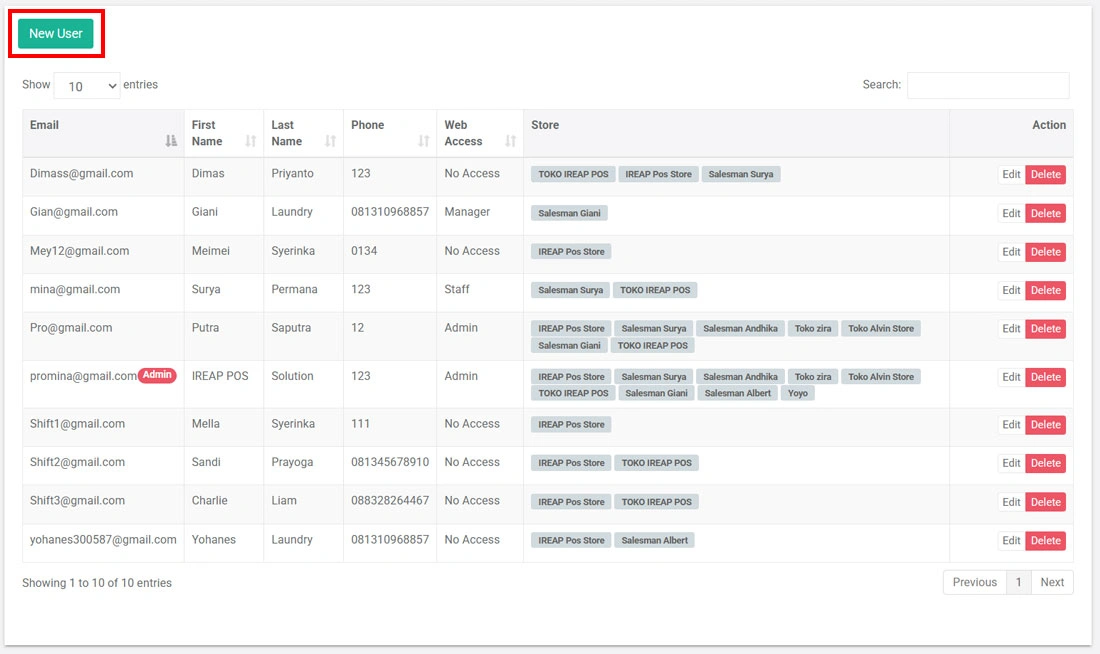
Click New User
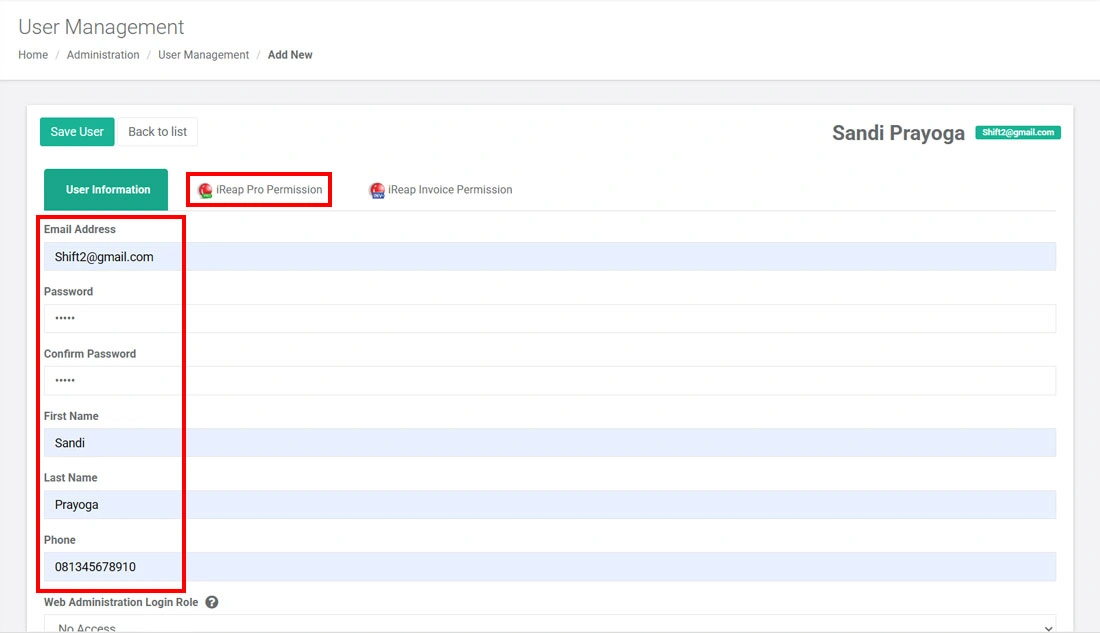
Fill in the new user details such as email, password, etc. Click the iREAP Pro Access section to assign store access for the user.
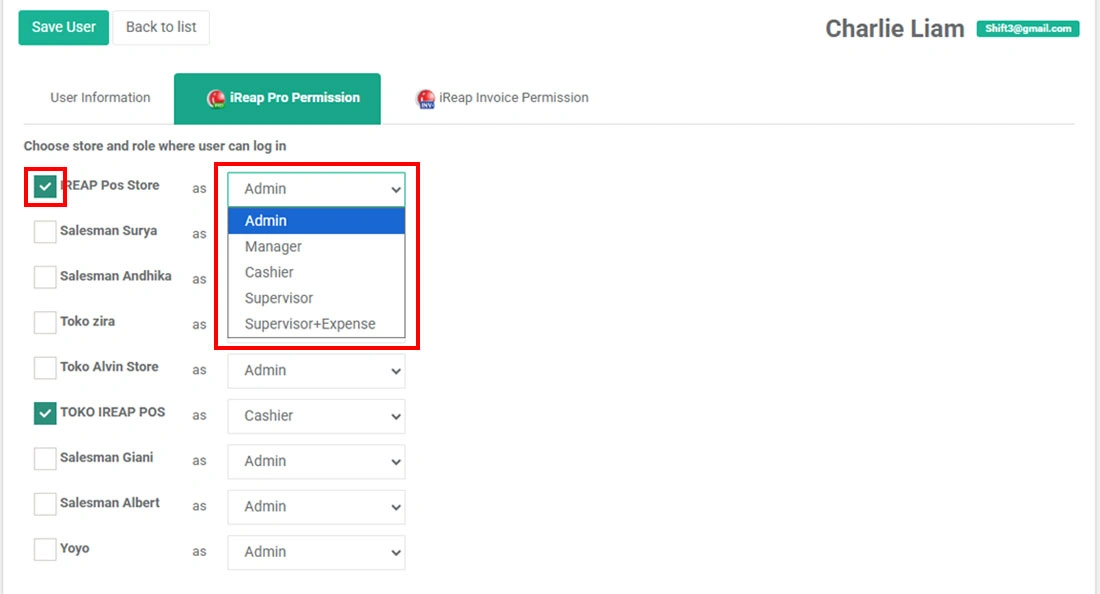
Select the store(s) assigned to the user, then choose the appropriate access level (Admin, Manager, Supervisor, Supervisor+expense, or Cashier)
NOTE:
More detailed information about user access levels (Admin, Manager, Supervisor, Cashier) can be found in the related guide.
After completing the setup, click Save User.The new user will automatically appear in the user list.
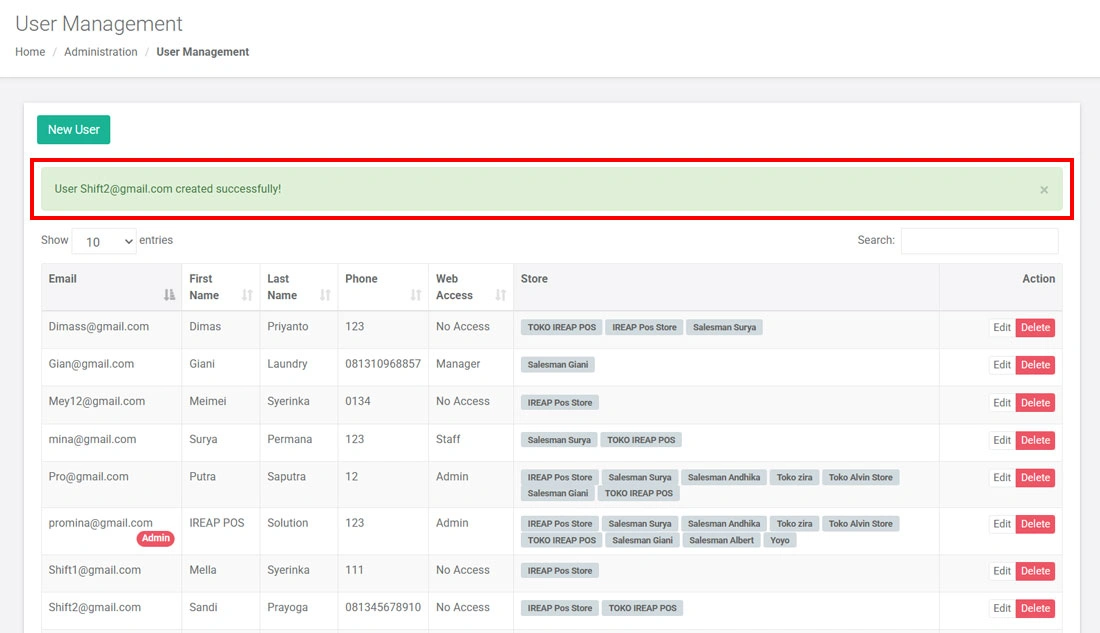
Once the user ID has been created, you can immediately log in to the assigned store using that account.
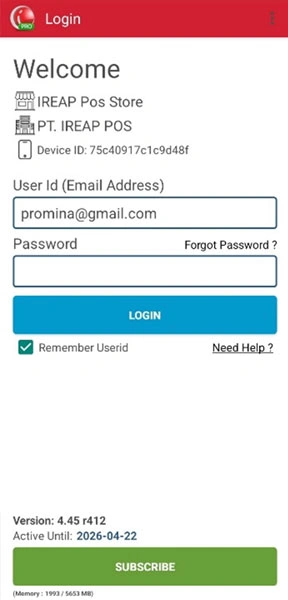
Open the iREAP POS Pro app on your device. Log in using an Admin account.
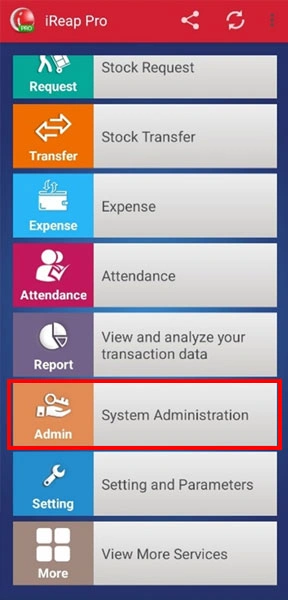
Go to System Administration.
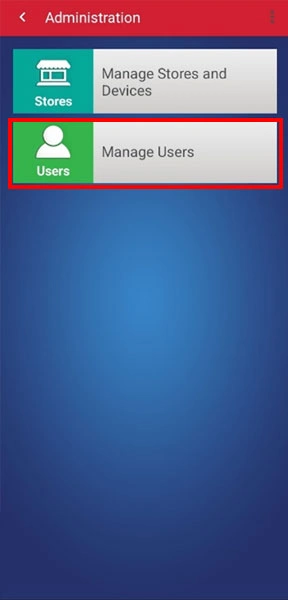
Select Manage User.
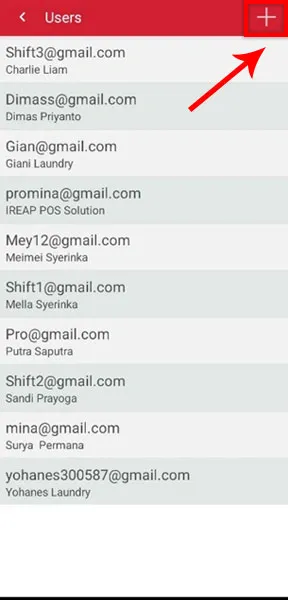
Click the Add (+) button
Enter the new user's details, then tap Store Assignment
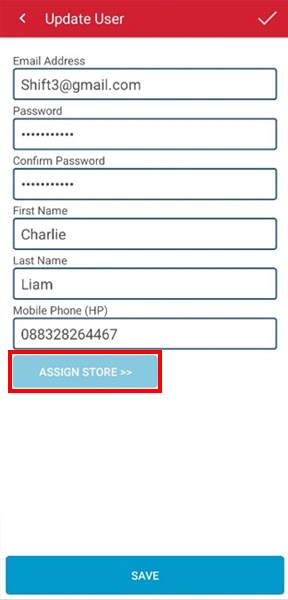
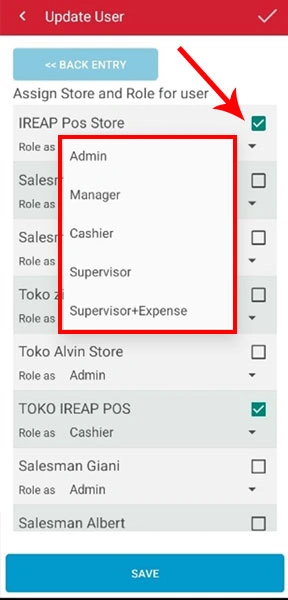
Select the store assigned to the user and set the role (Admin / Manager / Cashier / Supervisor / Supervisor+expense)
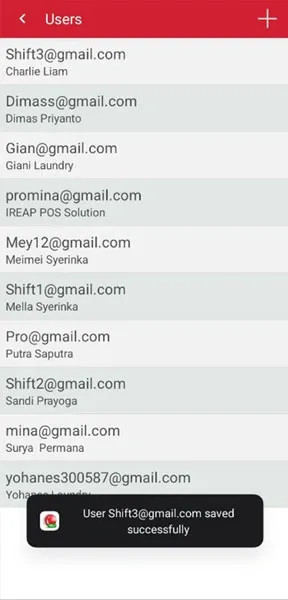
Click Save. The new user has been successfully added
NOTE:
If there is a change in staff (resignation, termination, or rotation), you do not need to create a new user. You can simply update or reassign the device used by the user as needed. Click here for how to change devices.
iREAP POS : iREAP stand for Integrated Retail Application, is an application designed and developed to help you managed and run store operation, consists of Point of Sale / Cashier system and inventory control system.