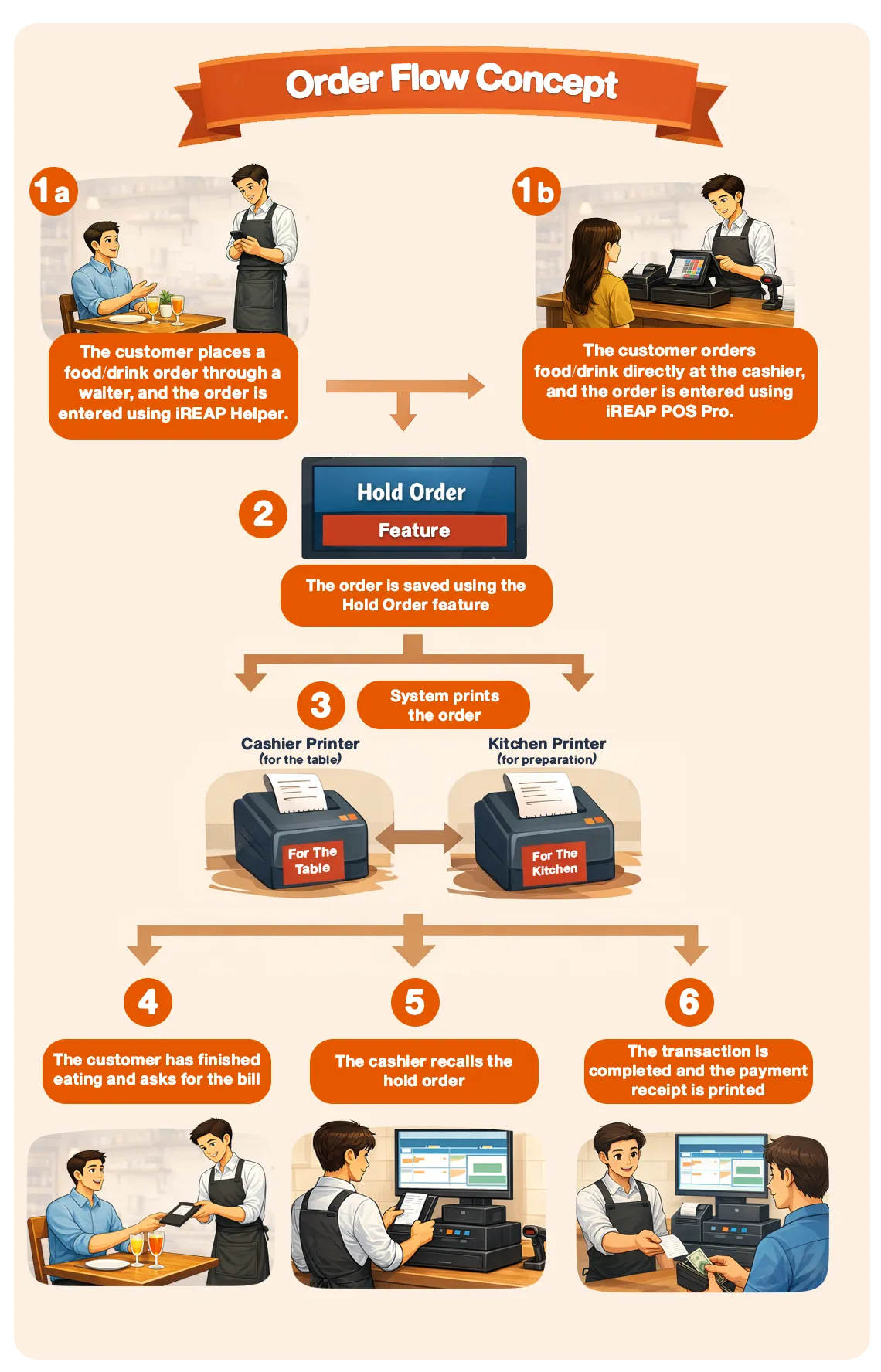
The Hold Order feature in iREAP POS Pro is specifically designed to support restaurant and cafe operations that serve dine-in customers. With this feature, orders can be temporarily saved before payment is made.
Key benefits of the Hold Order feature:
Example usage:
This feature is available on both iREAP POS Pro and iREAP Helper, making the workflow between the cashier and kitchen more organized, faster, and less prone to errors.
Turn on both printers and ensure they are ready to use.
Enable Bluetooth on your Android device, then connect it to both Bluetooth printers.
Open the iREAP POS app and go to System Settings.
Select Printer Model 1, then choose the printer type you are using. If your printer is not listed or you are not using a dedicated printer, select OTHER 58mm or OTHER 80mm according to your paper size.
Go to Bluetooth Printer Name, then check the name of the first connected printer.
Repeat the same steps for Printer Model 2 - choose the printer type and check the second Bluetooth printer.
Once connected, you can start creating sales orders.
Waiter Receives the Customer's Order
The waiter records the customer's order directly at the table using iREAP Helper (if waiters are available), or inputs the order using iREAP Pro if the customer orders directly at the cashier.
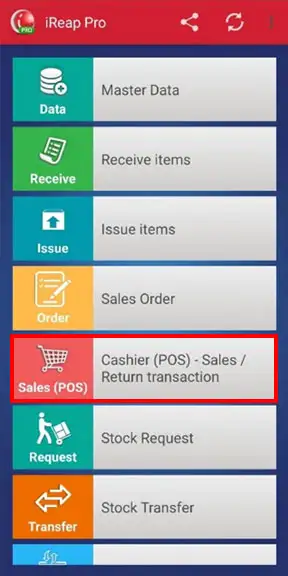
Go to the POS / Sales Transaction menu
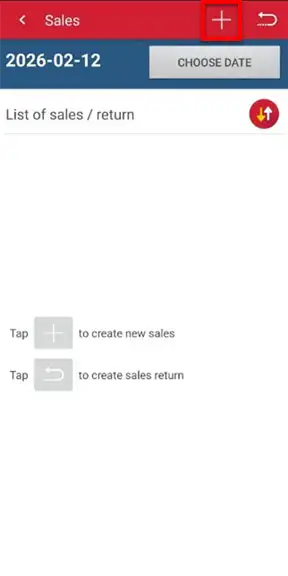
Enter the ordered items
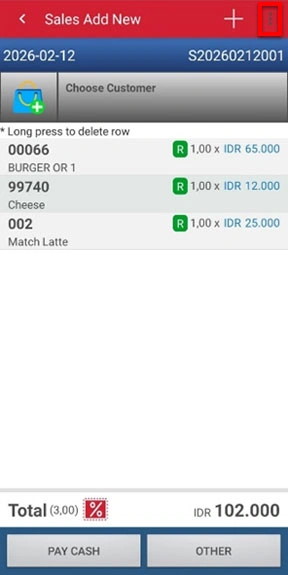
Input the Order into iREAP POS Pro
The waiter or cashier enters the order into the iREAP POS application, then:
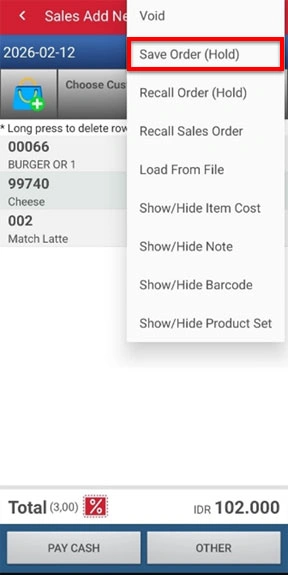
Click the three-dot button ? Select Save Order (Hold)
Enter the order name (for example: Table 1, Table 5, or the customer's name) ? Click Save Order
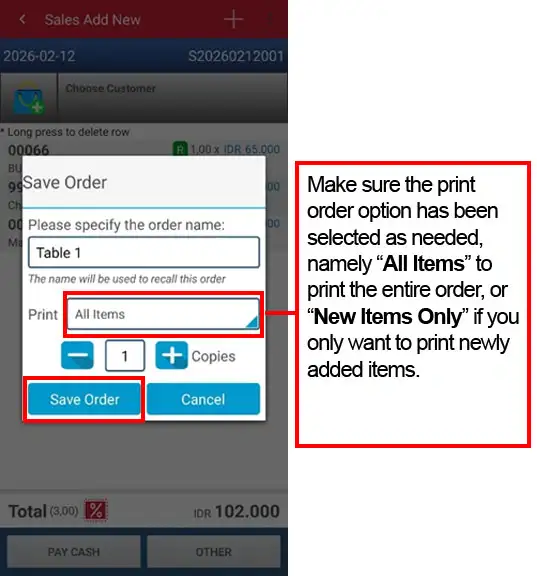
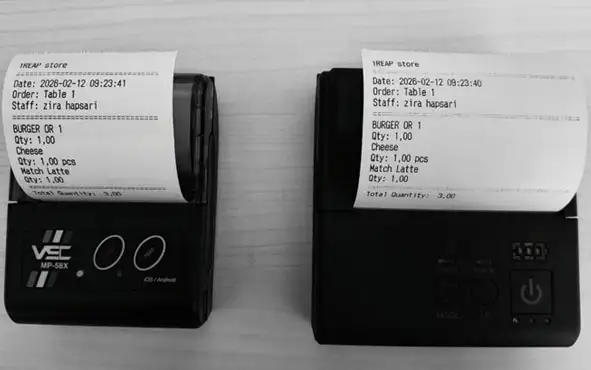
At this stage, the system can immediately print the order to:
Cashier printer
Kitchen printer
Customer Finishes Dining and Requests the Bill
After finishing their meal, the customer asks the waiter for the bill.

Recall the Saved Order
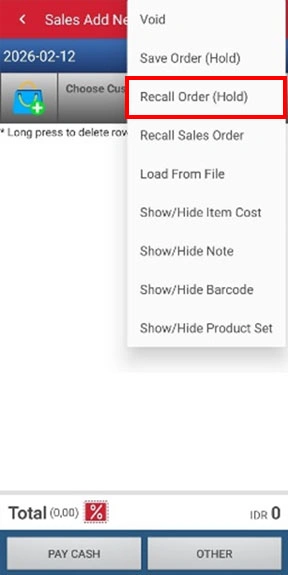
The cashier opens the Hold Order list by clicking Recall Order (Hold). (At this stage, the waiter may come to the table, or the customer may go directly to the cashier.) Then:
Select the order based on the name/table
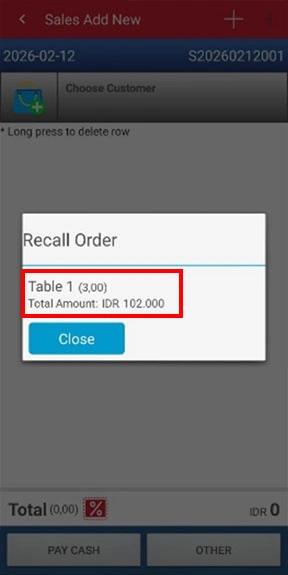
Reconfirm the ordered items
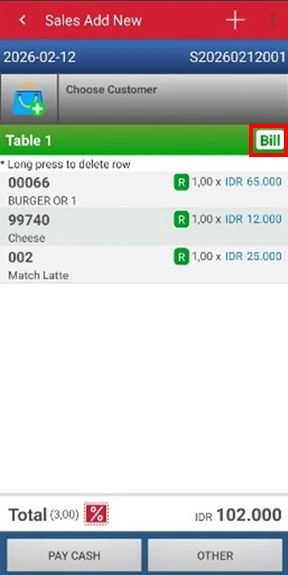
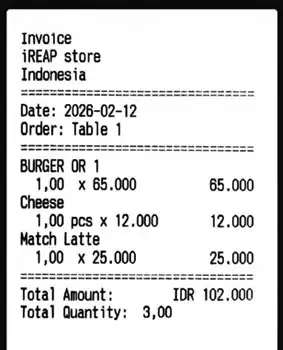
Customer Makes Payment
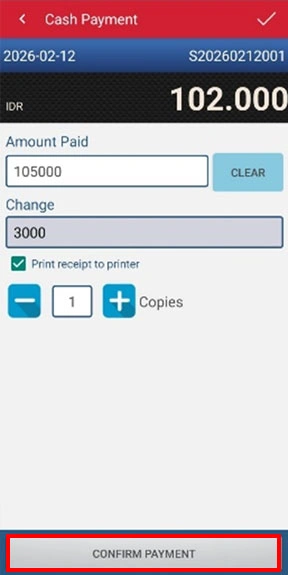
Select the customer's preferred payment method, such as Cash, Card, Metode Pembayaran or Other available payment methods, then click Confirm Payment.
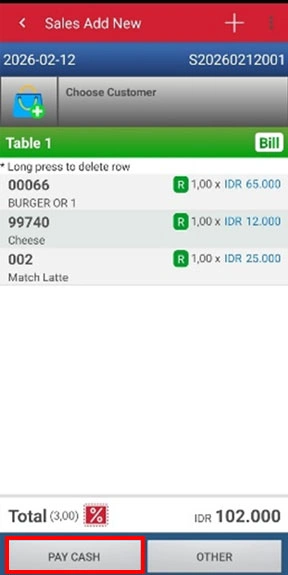
Close the Transaction and Print the Receipt
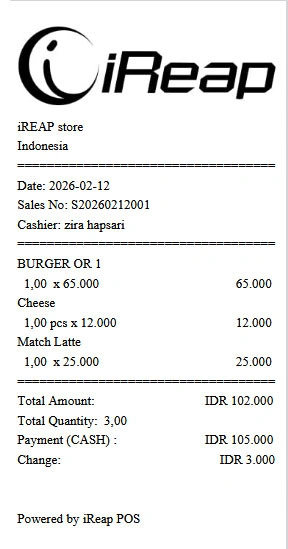
After payment is confirmed:
NOTE:
- Ensure the cashier printer and kitchen printer are properly connected and configured.
- The dual-printer feature applies to both iREAP POS Pro and iREAP Helper.
- Naming orders (for example, by table) is highly recommended to prevent mix-ups.
With this workflow, restaurant operations become more structured, the kitchen receives orders faster, and the billing process for customers becomes much easier.
iREAP POS : iREAP stand for Integrated Retail Application, is an application designed and developed to help you managed and run store operation, consists of Point of Sale / Cashier system and inventory control system.