The User Management feature in iREAP POS Pro allows you to manage user access to one or multiple stores within a single system in a more controlled and efficient way. With this setup, each user can only access stores based on the permissions granted, ensuring that operational activities remain well-organized and secure.
Managing store access is especially important for businesses with multiple branches. By limiting access, you can ensure that each user is responsible only for their assigned store, maintain data security across stores, and simplify overall business monitoring and management.
ALSO READ:
How to Assign Web Admin Access Rights
NOTE:
In iREAP POS Pro, each device is assigned to one store. However, one store can be accessed by multiple users, and one user can also have access to multiple stores depending on your business needs.
Open your browser and go to www.ireappos.com.

Click Login iREAP POS Pro.
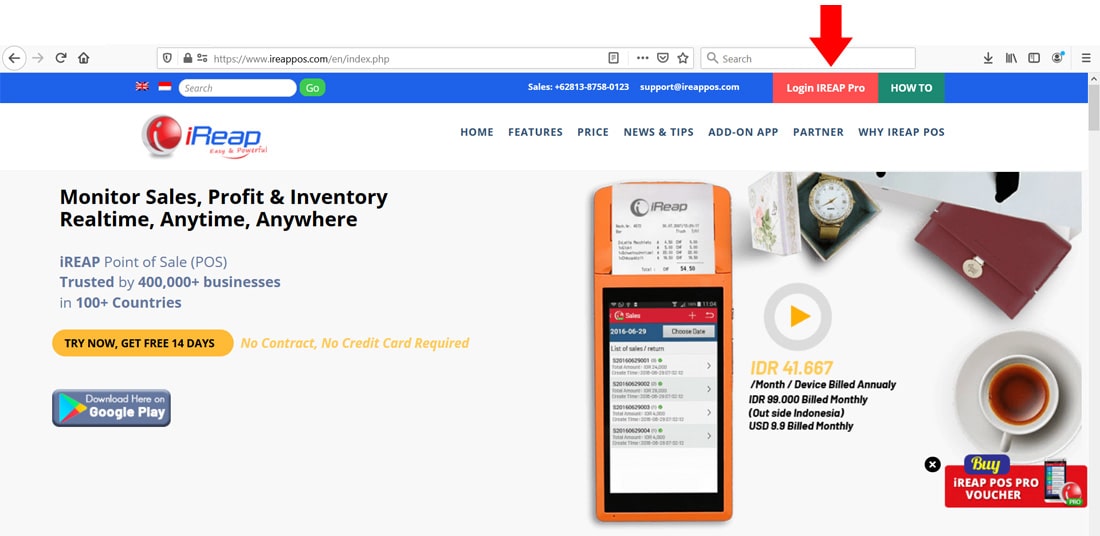
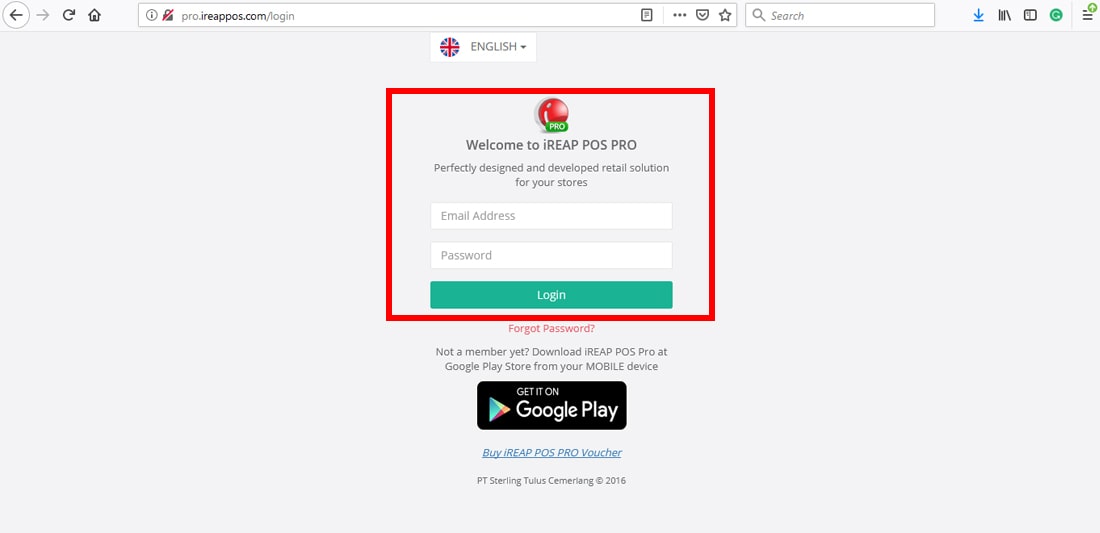
Or you can login from pro.ireappos.com/login.

Enter your email address and password (using admin account).
Go to main page of your iReap Pos Pro.
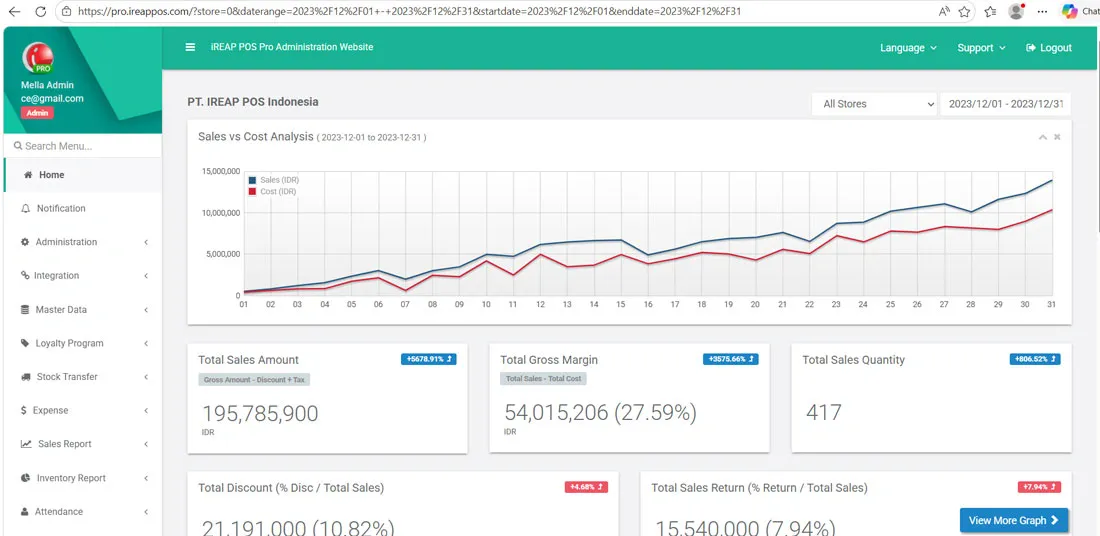
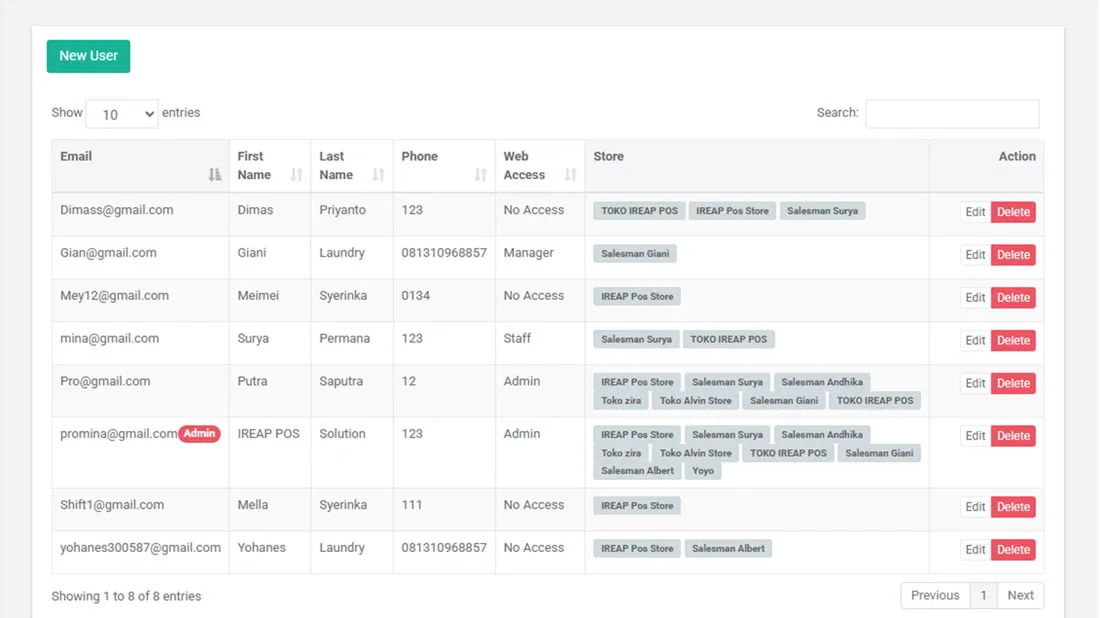
Go to the Administration menu, then select User Management.
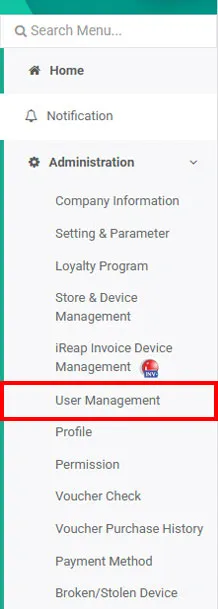
On the user list page, select the user you want to assign by clicking the available action button
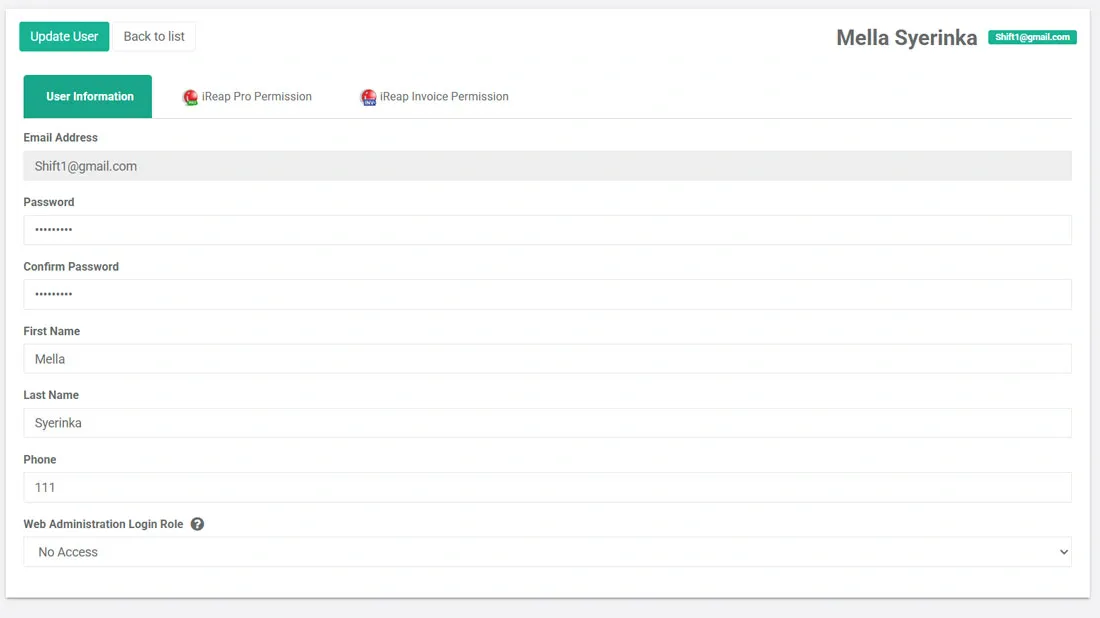
Go to the IREAP PRO Permission menu to assign iREAP POS Pro access to the selected user.
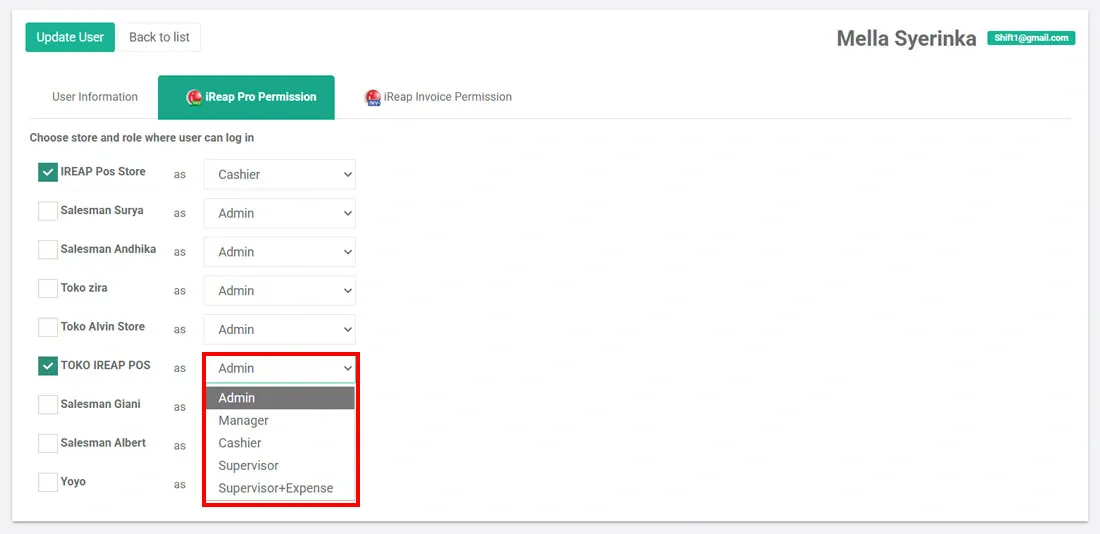
Assign the store that will be the user's responsibility, then choose the appropriate access level (Admin, Manager, Supervisor, Supervisor+Expense, or Cashier).
NOTE:
More detailed information about each access level. (Admin, Manager, Supervisor, Cashier) can be found in the related guide.
After completing the setup, click the Update User button to save the changes  .
.
Finally, log in using the assigned user account and ensure that the user can only access the store according to the permissions given.
iREAP POS : iREAP stand for Integrated Retail Application, is an application designed and developed to help you managed and run store operation, consists of Point of Sale / Cashier system and inventory control system.