Recommended for first-time iREAP POS users

The iREAP POS Android cashier app now supports the iWARE PXA-38 dual display / dual monitor cash register. With two integrated screens, the cashier can process transactions on the main screen while customers see their purchase details directly on the second screen. This combination helps create a checkout process that is more transparent, faster, and more professional, and it is well suited to minimarkets, retail stores, restaurants, cafes, and many other types of business.


NOTE:
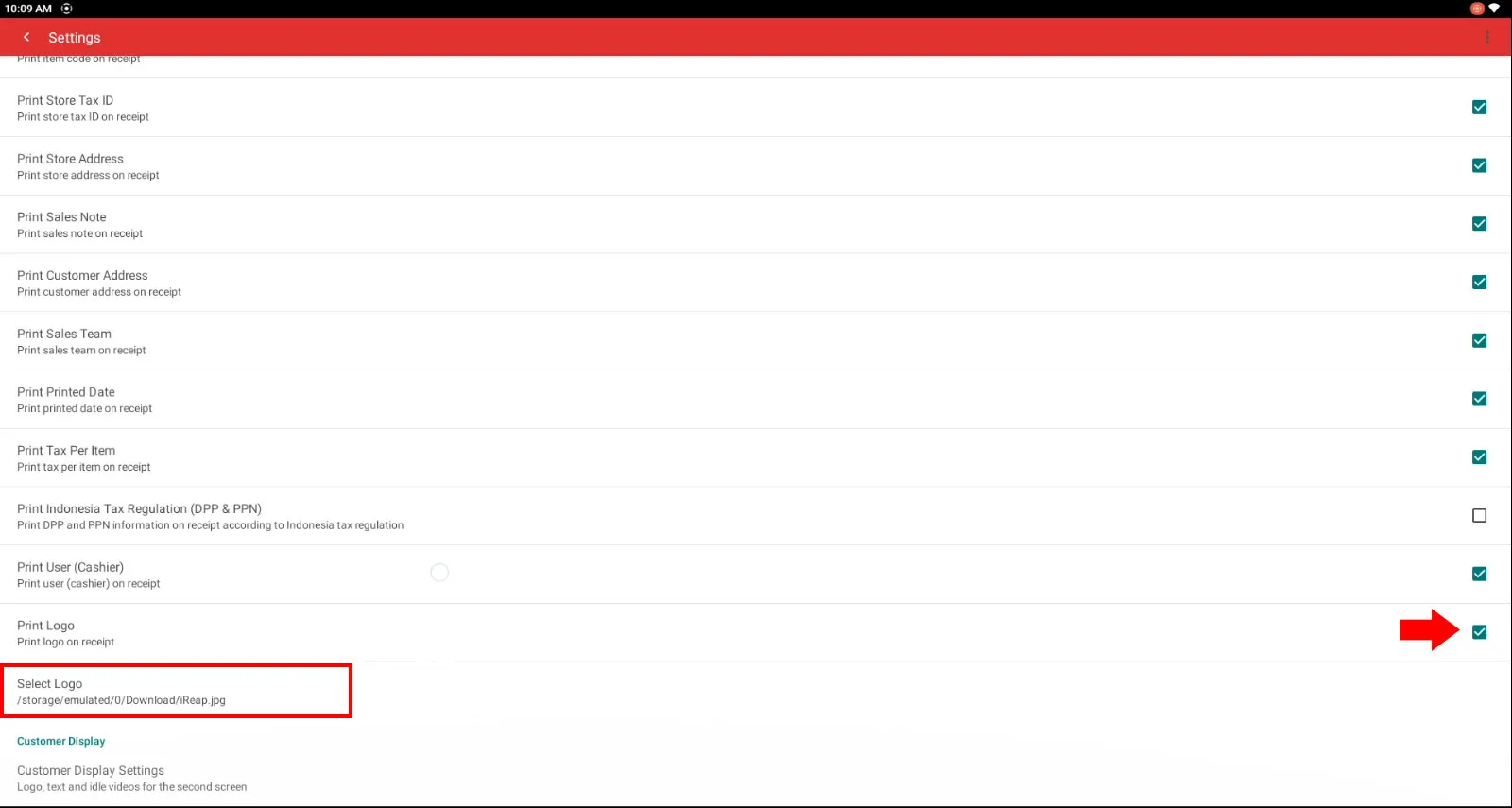
We recommend using a logo with a maximum width of 360 pixels
| iWARE PXA-38 Dual Display Cash Register | |
|---|---|
| Device Type | All-in-One Android Cash Register |
| Brand | iWARE |
| Model | PXA-38 |
| Operating System | Android 11 |
| RAM | 4 GB |
| Storage | 64 GB |
| Main Screen | 15.6-inch Touchscreen |
| Customer Screen | 15.6 inch |
| Screen Configuration | Dual Display / Dual Monitor |
| Built-in Printer | 80 mm Thermal Printer |
| Receipt Printing | Yes |
| Cashier App | iREAP PRO |
| Customer Screen Function | Displays transaction details and the customer's total purchase |
| Suitable For | Minimarkets, retail stores, restaurants, cafes, and many other businesses |
Open the Play Store on your iWARE device. Then install iREAP PRO.
Once installed, open the iREAP PRO cashier app.
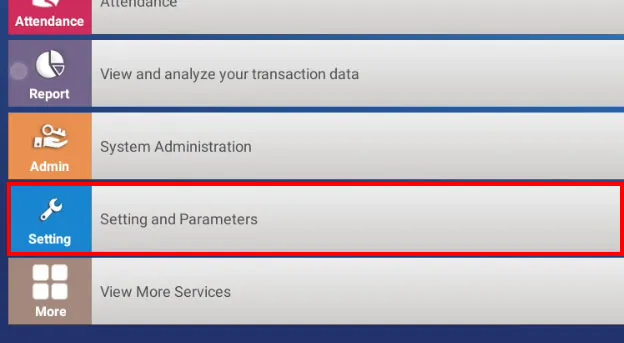
Open the settings menu
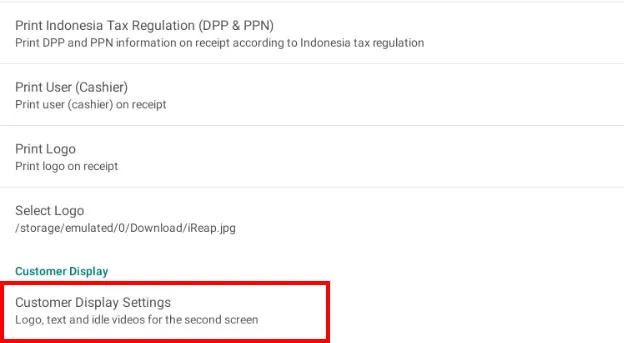
Then look for and tap the Customer Display Settings menu.
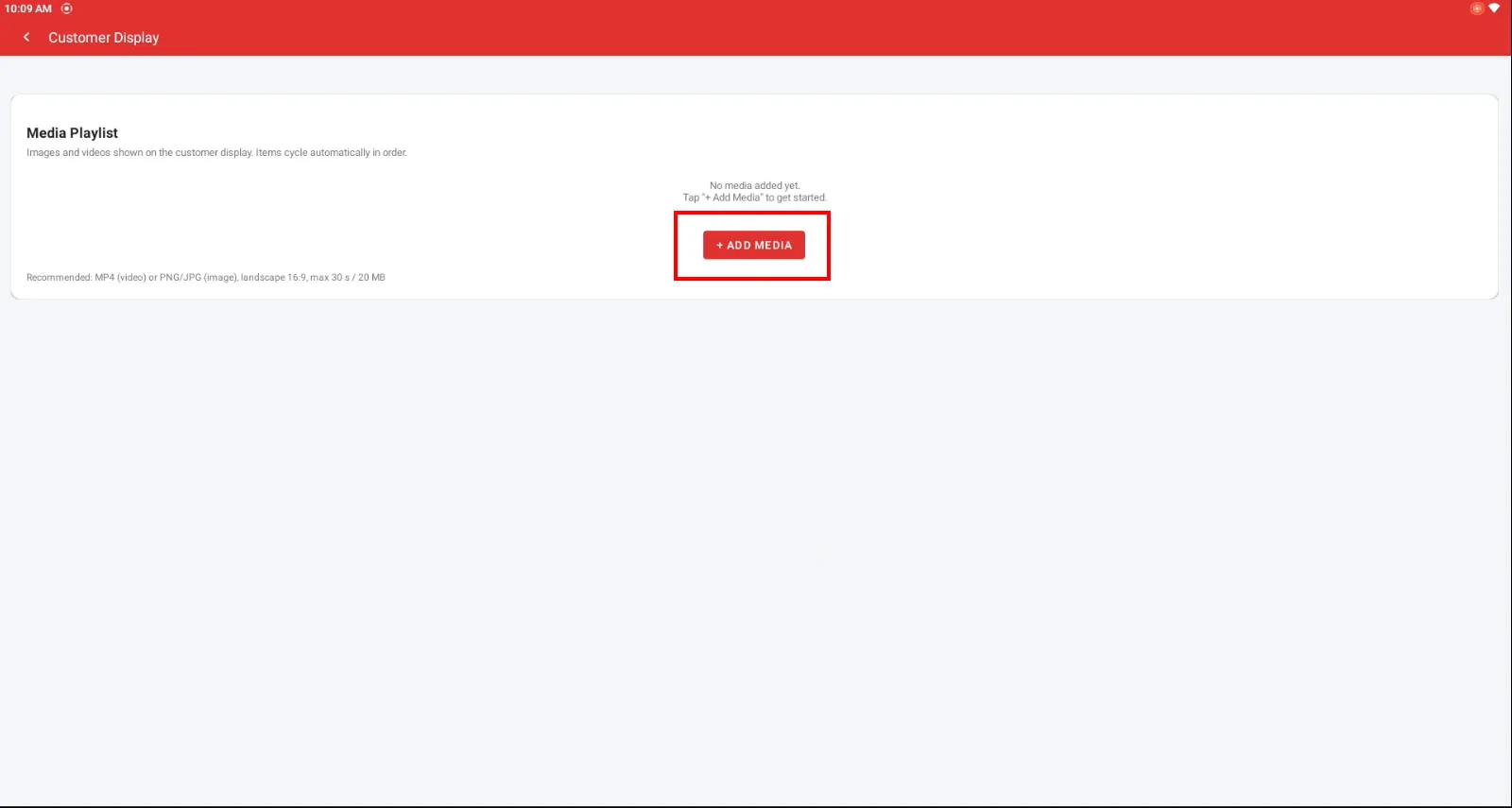
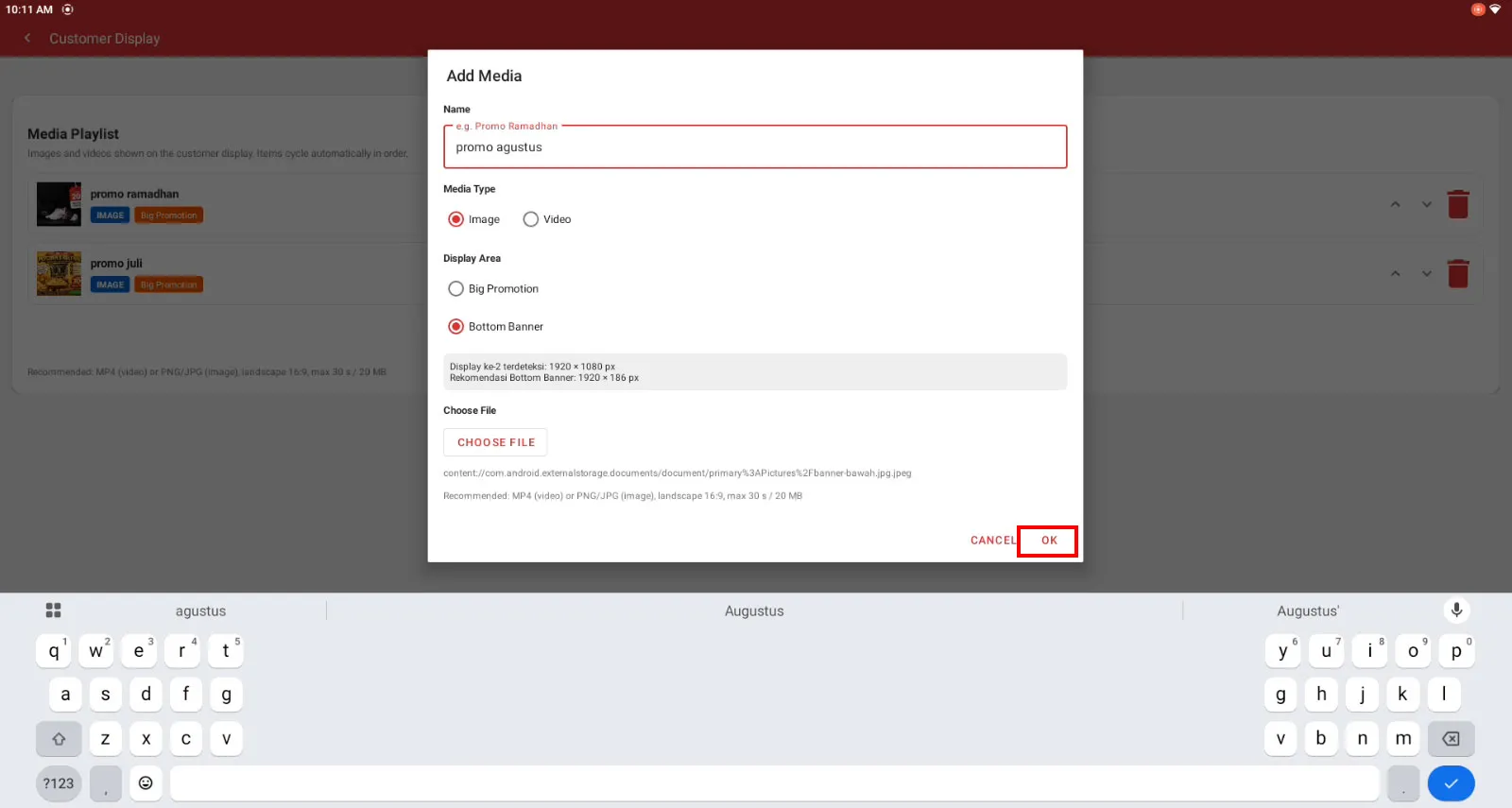
On the customer display, tap the Add Media button.
Enter the Promo Name. You can add an image or a video. Then choose big promotion or bottom banner.
NOTE:
Prepare your promo banner and adjust its size to match the recommendation shown on screen for the iWARE PXA-38 device. Big Promo 1152 x 814 px, Bottom Banner 1920 x 186 px. You can also add more than one image.
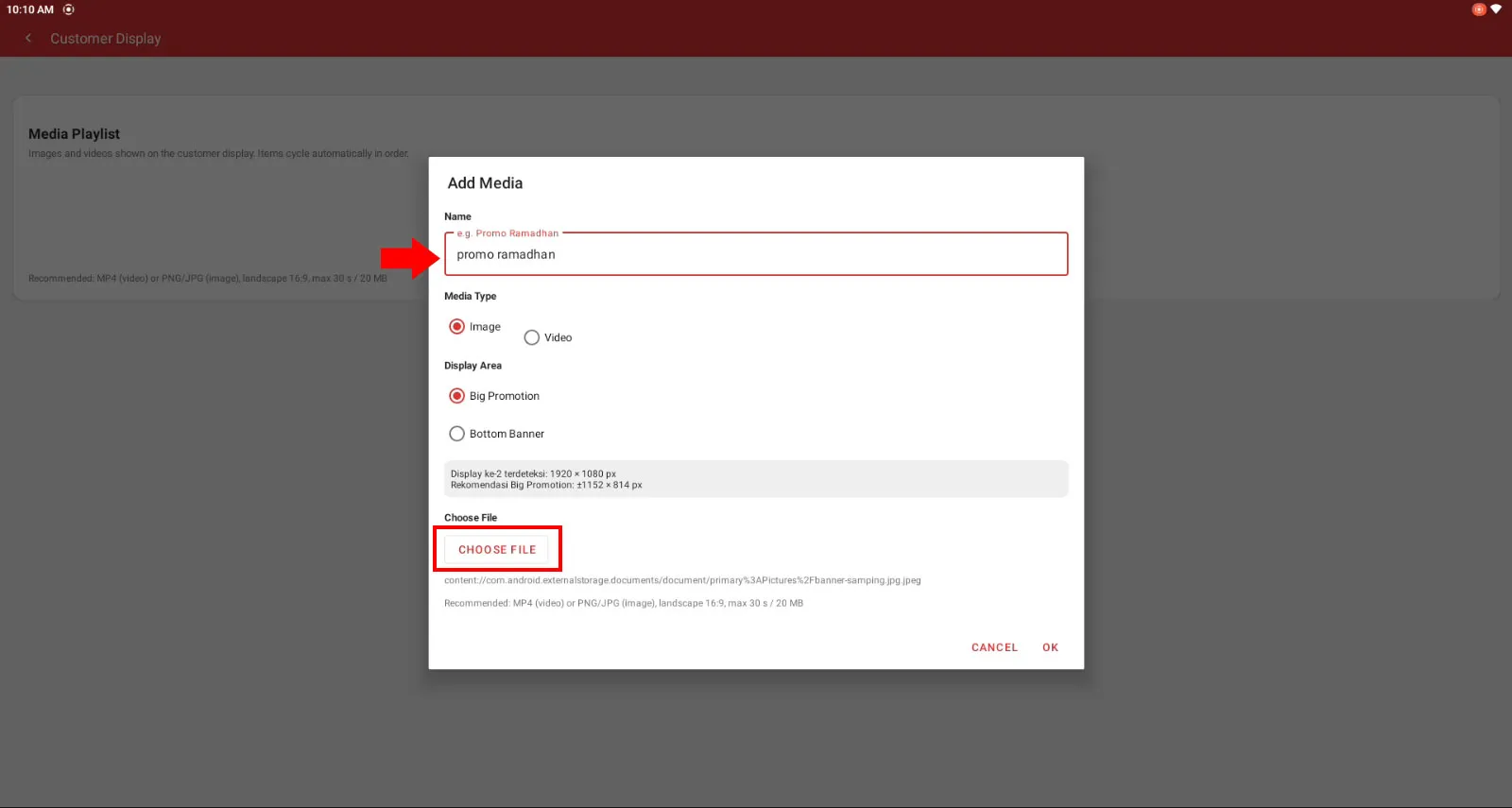
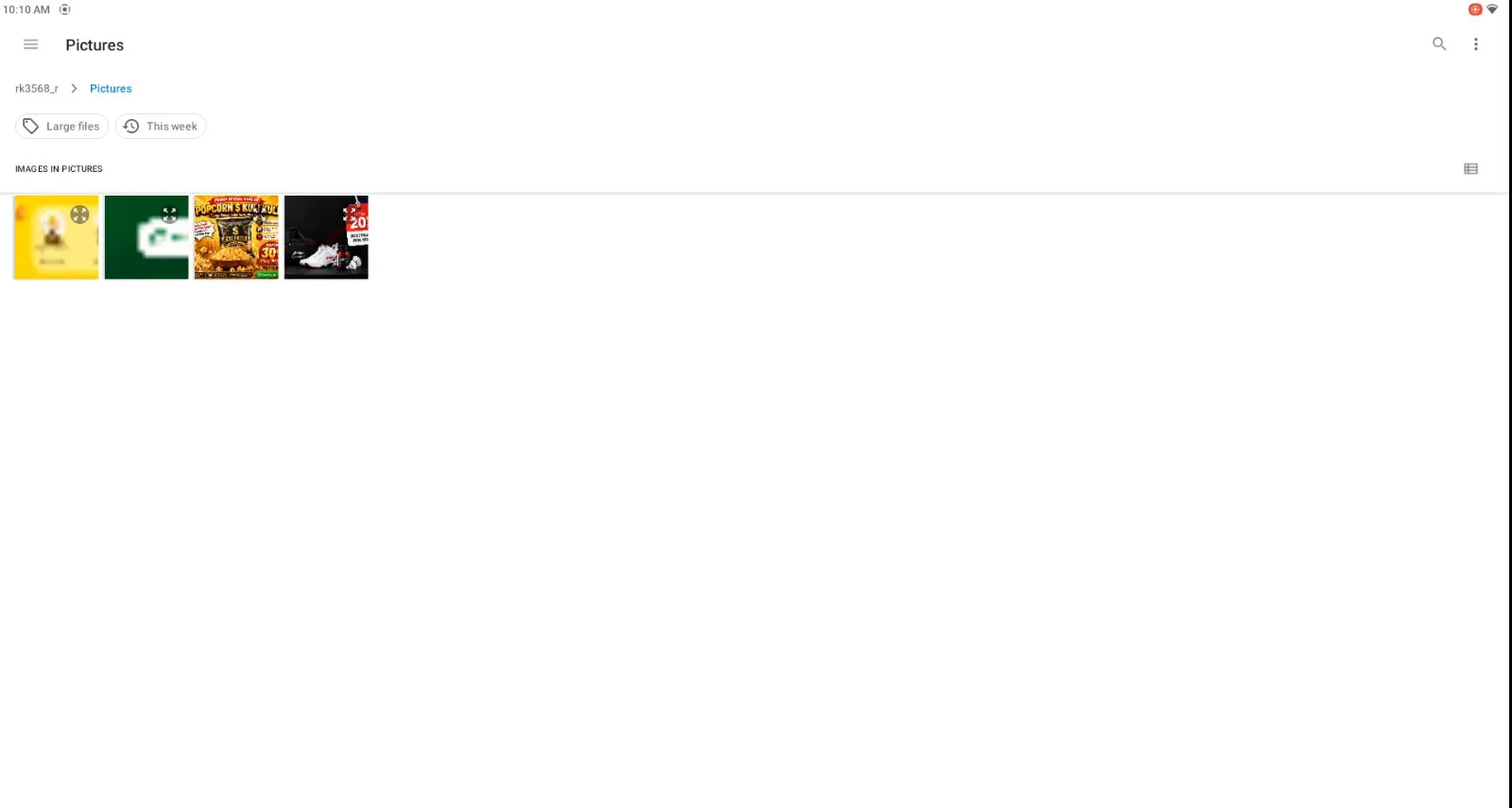
Once the promo banner has been added, tap Ok.
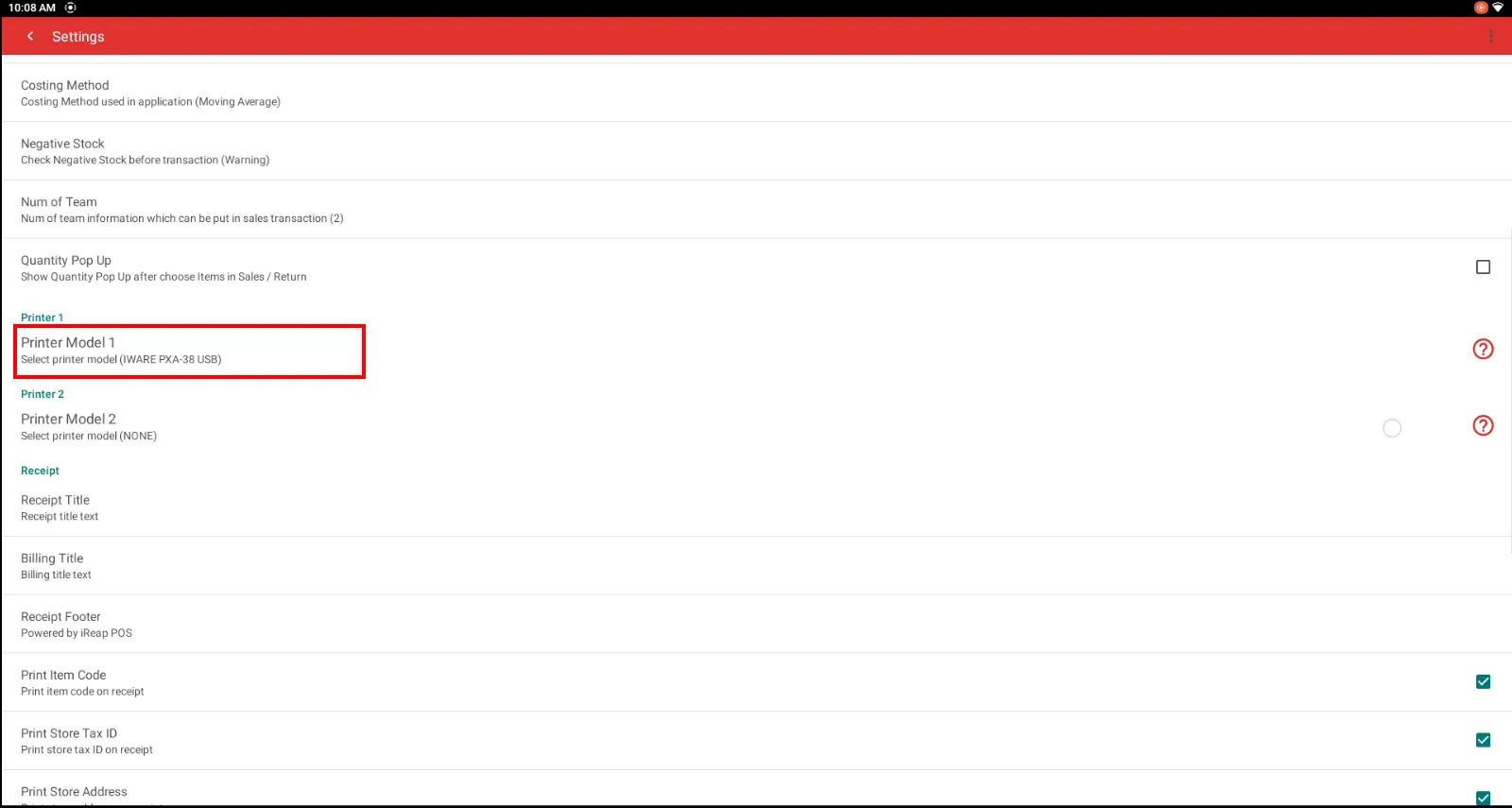
Open the settings menu
Then look for and tap the Printer Model 1 menu
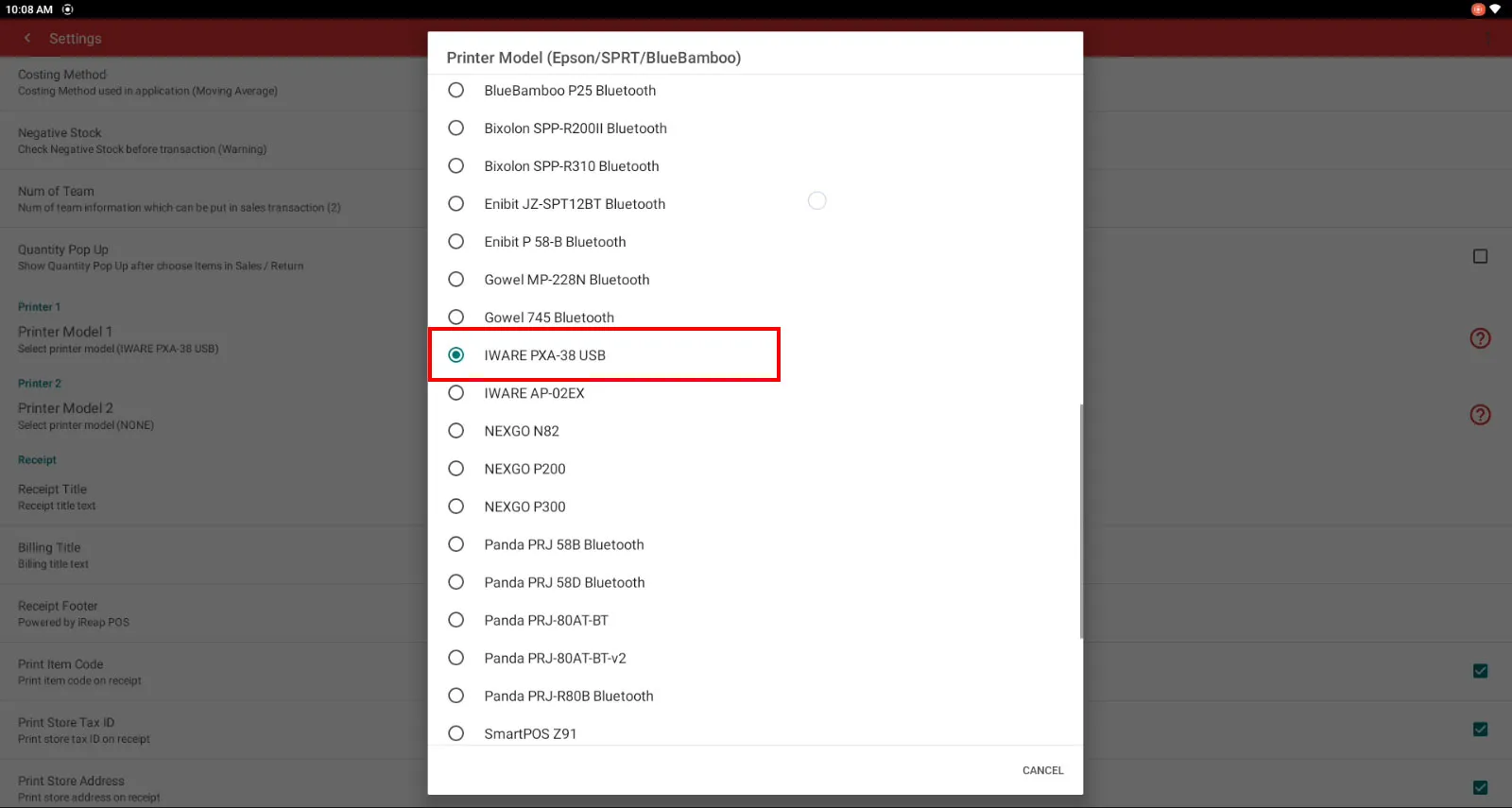
Look for IWARE PXA-38 USB
Scroll down and tick Print Logo, then choose select logo.
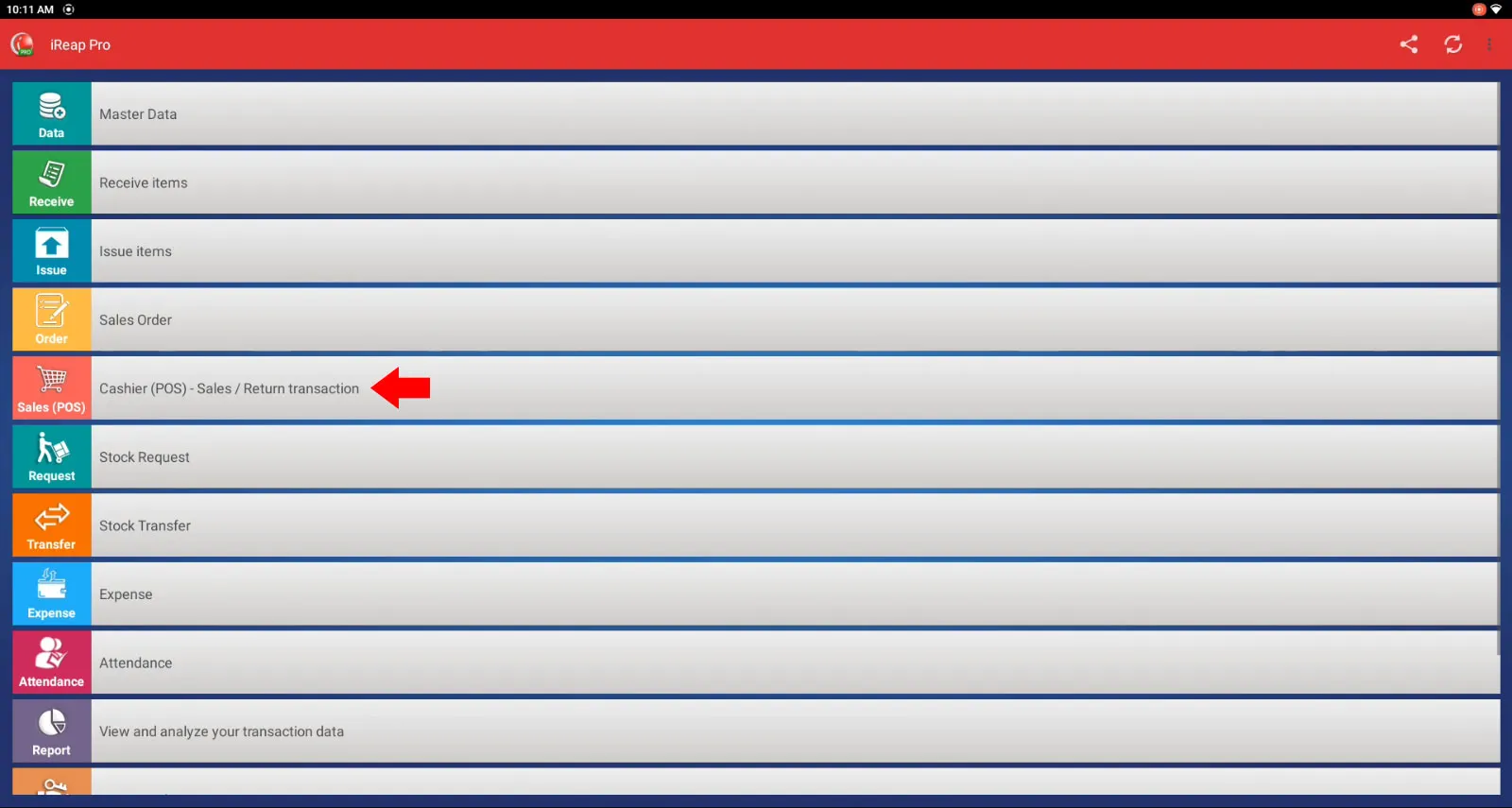
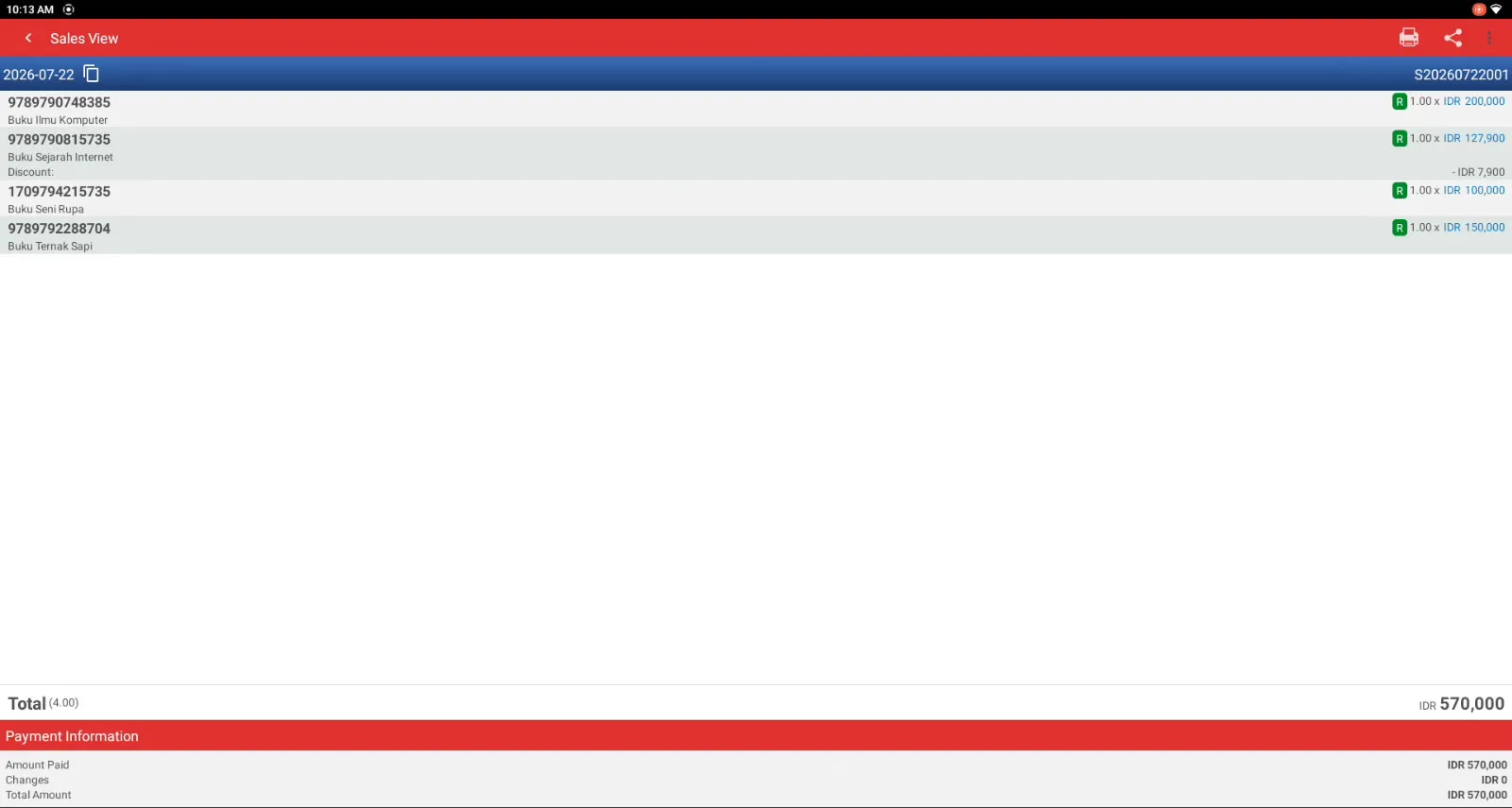
Go back to the main menu and choose the sales menu
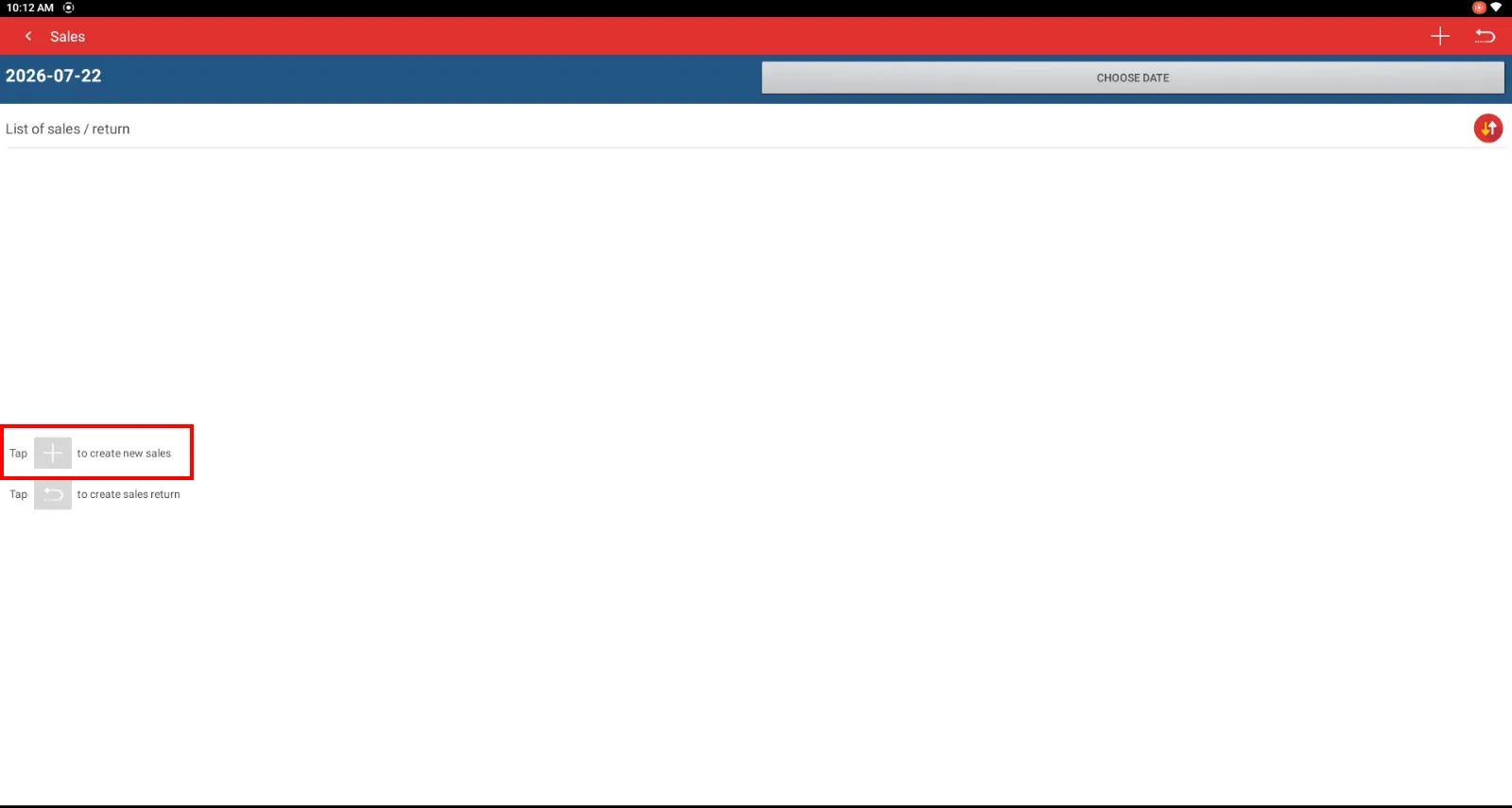
Create a transaction by tapping the + icon
Select the items the customer wants to buy.
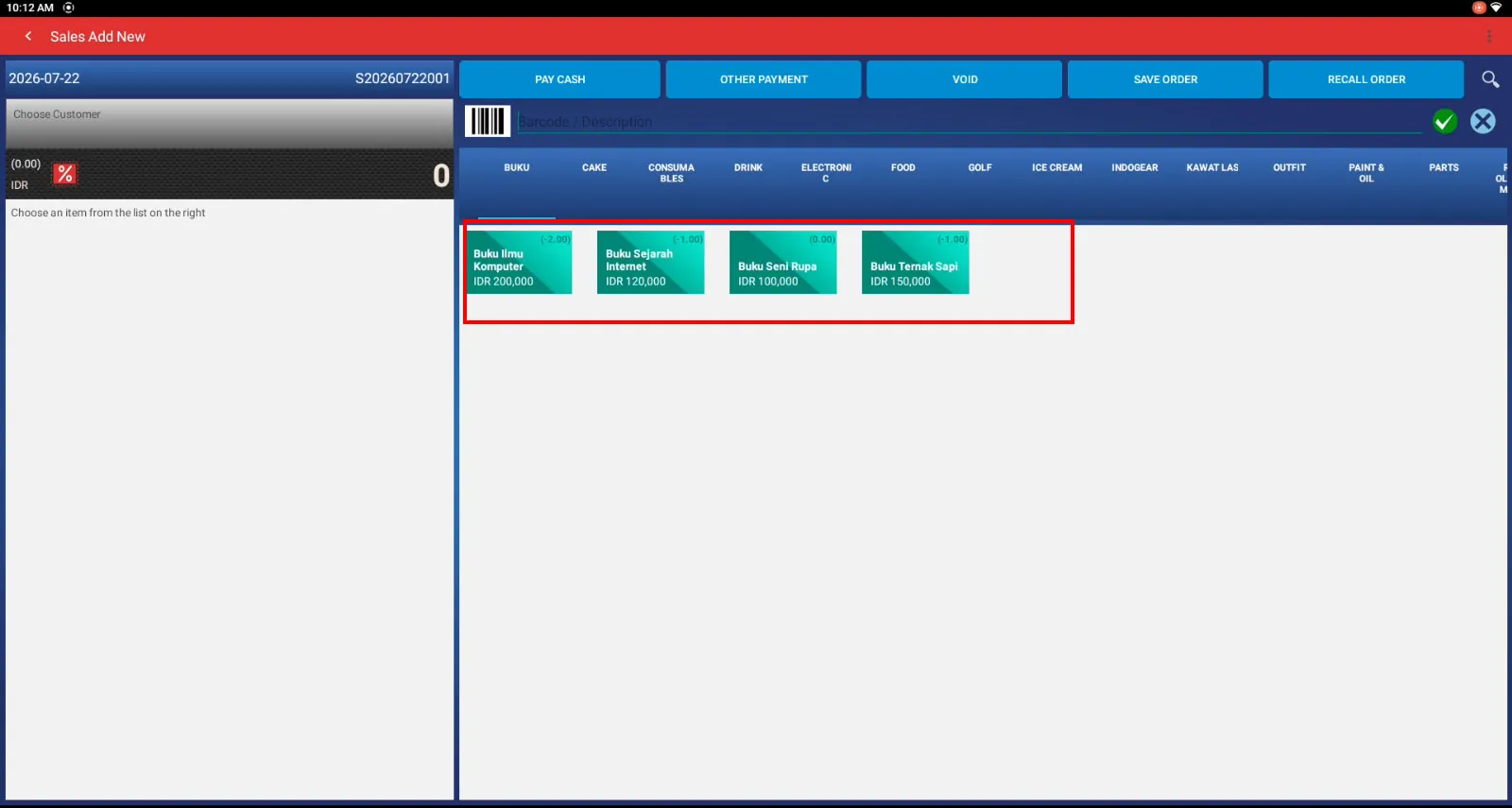
Once you are done, take payment by tapping the cash payment button. If you want to use a digital payment, choose Other.
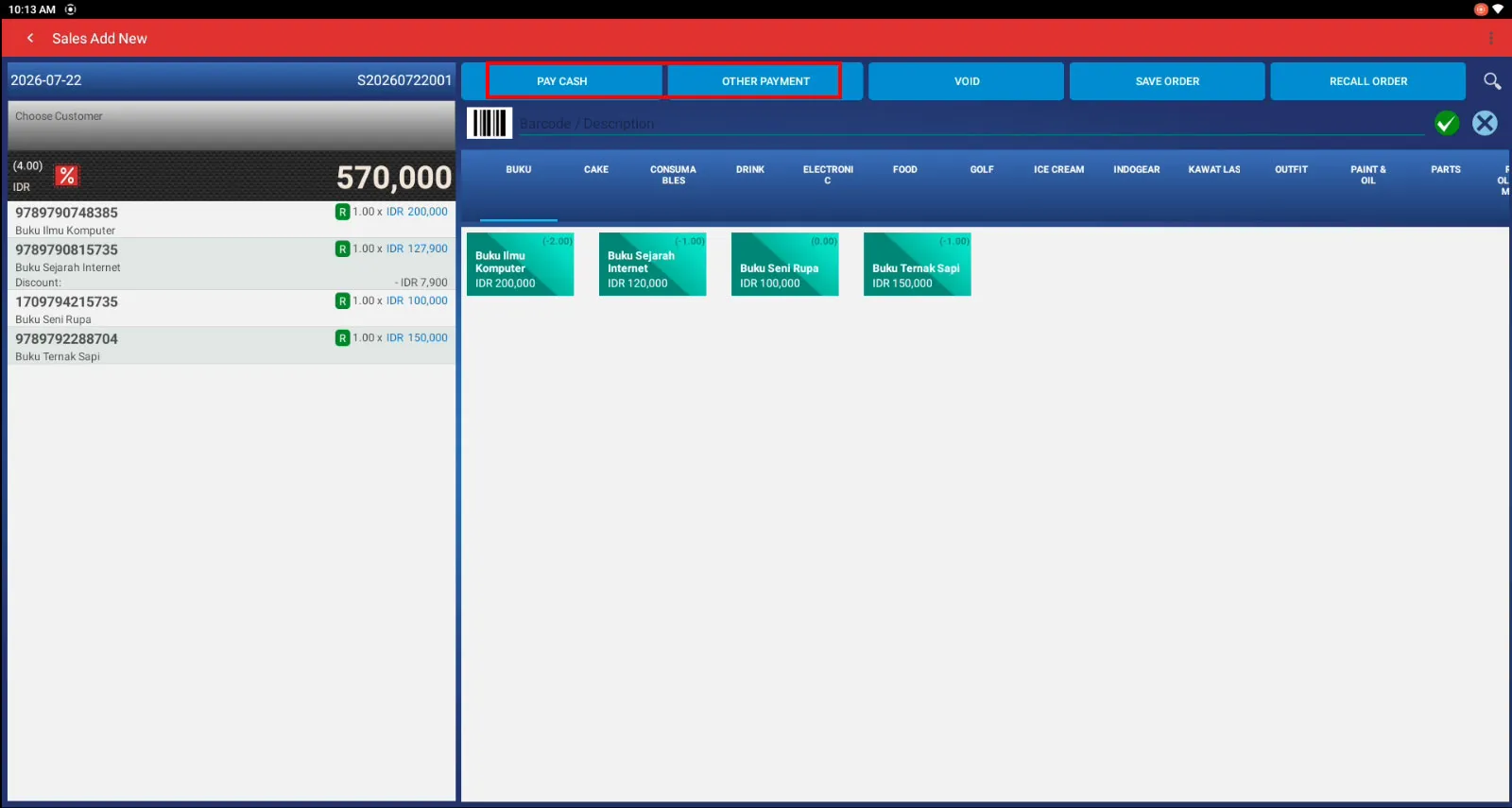
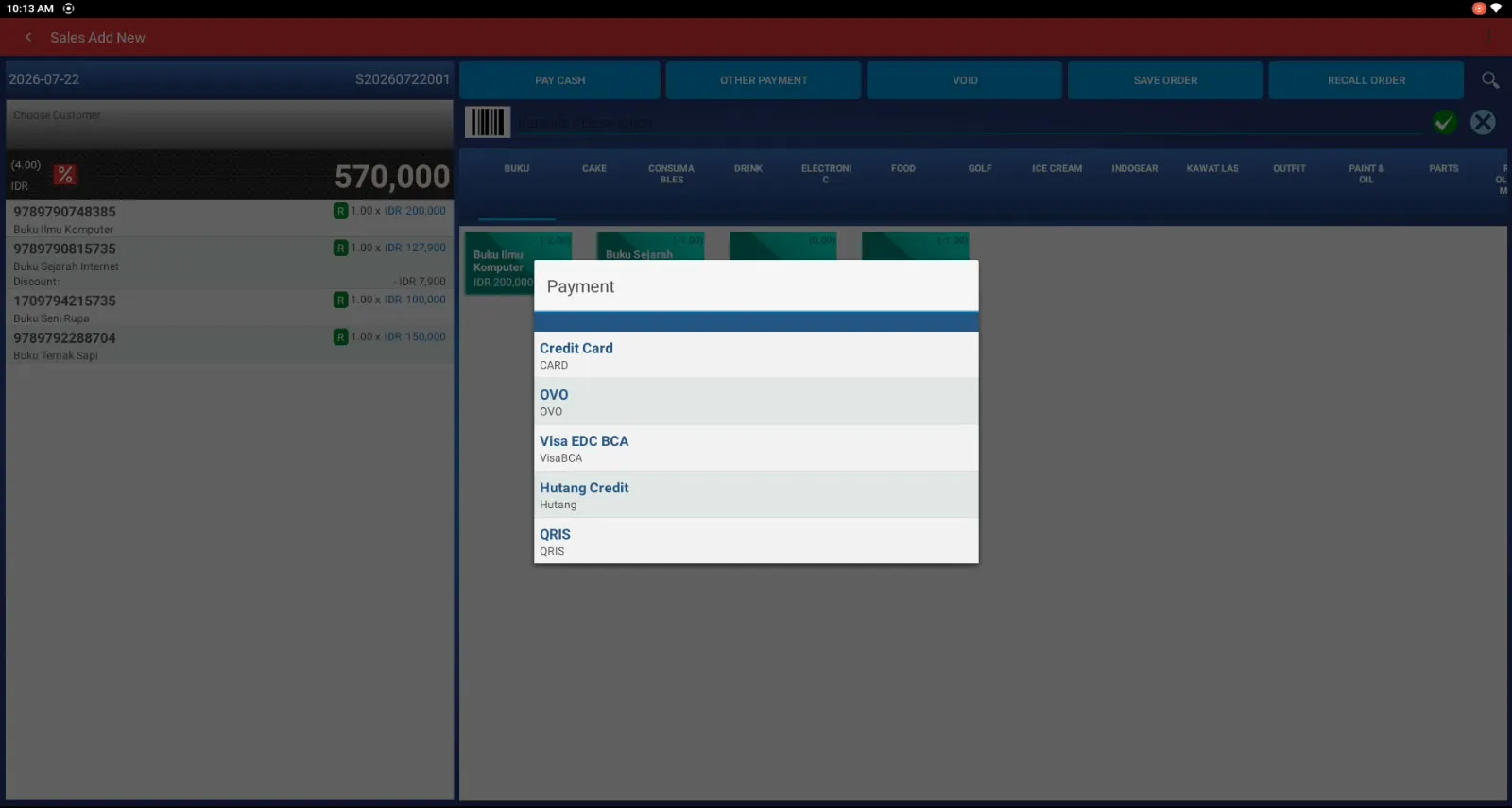
As an example of a digital payment, we will use QRIS.
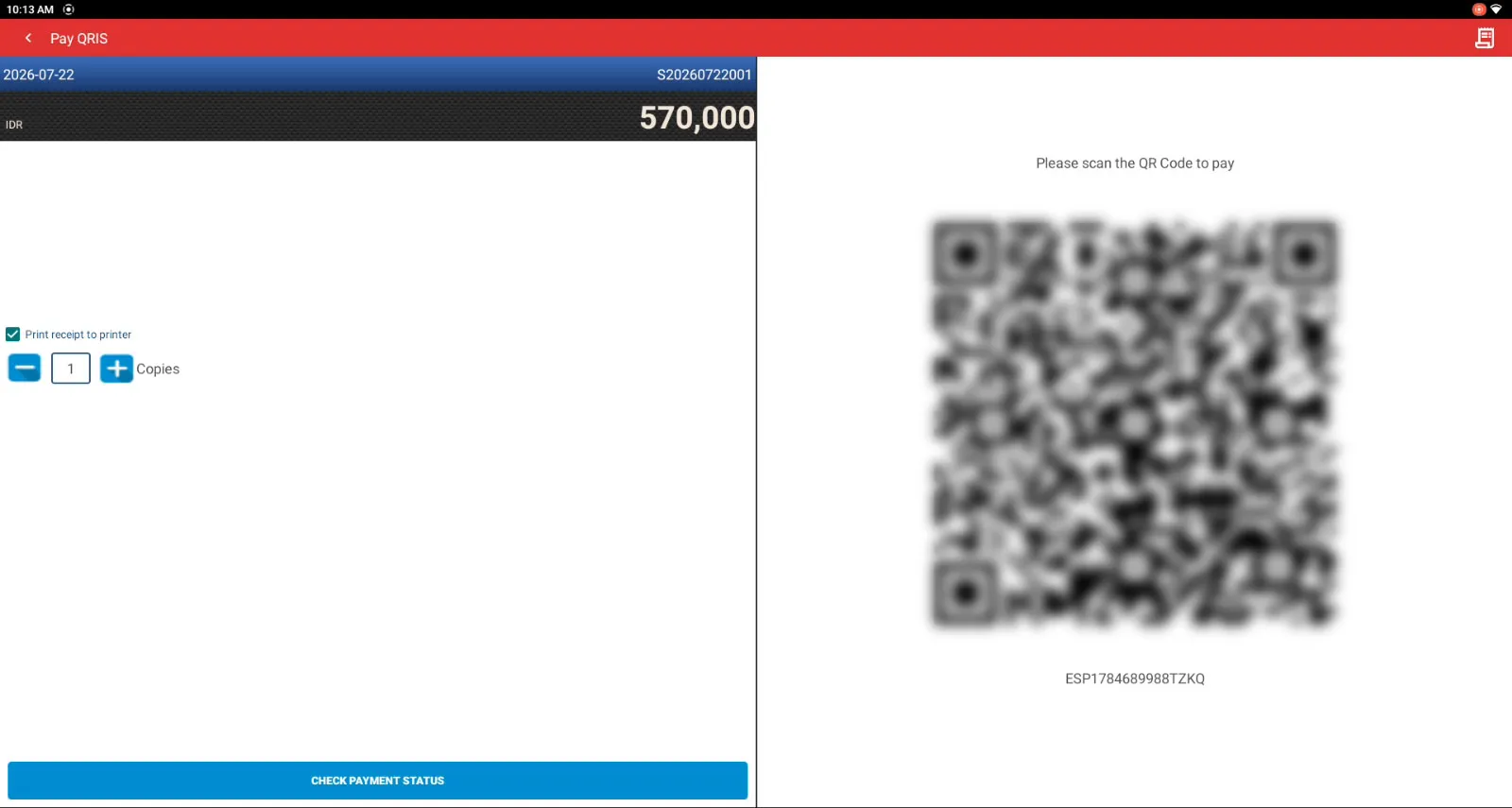
The QRIS barcode will then appear on both the cashier screen and the customer screen
Cashier Screen
Customer Screen
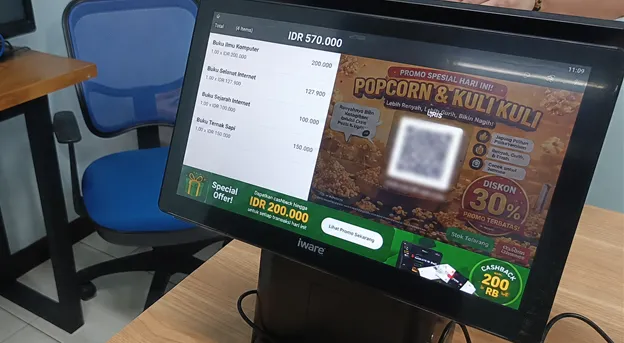
Congratulations, you have successfully completed a transaction in iREAP PRO on the iWARE PXA-38 dual display device.
iREAP POS : iREAP stand for Integrated Retail Application, is an application designed and developed to help you managed and run store operation, consists of Point of Sale / Cashier system and inventory control system.