Recomended for first user iREAP INVOICE

When you purchase goods from a supplier on credit (payables), whether from a purchase transaction created directly in iReap Invoice or synced from IREAP PRO, you need to record an outgoing payment when making a payment to the supplier.
Supplier payments can be recorded as full payment (paid in full), partial payment (installment), or multiple payments until the payable is fully settled. By recording these payments properly, your payable reports and business cash flow will remain accurate and well controlled.
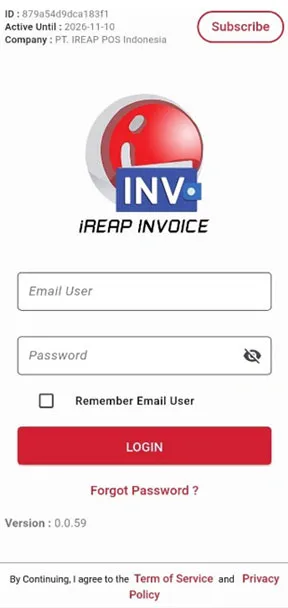
Log in to iREAP Invoice
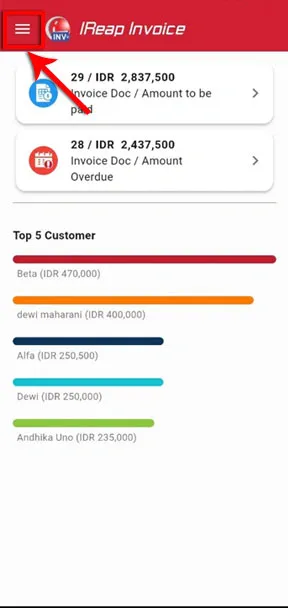
Tap the icon 
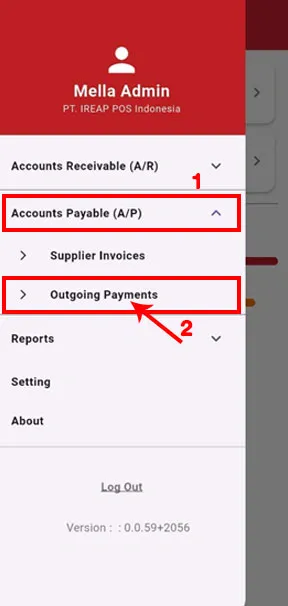
Select Payables (A/P) > Click Outgoing Payment
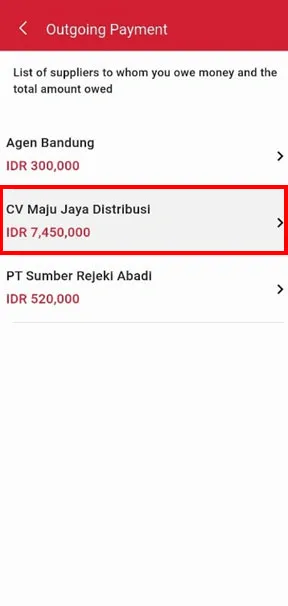
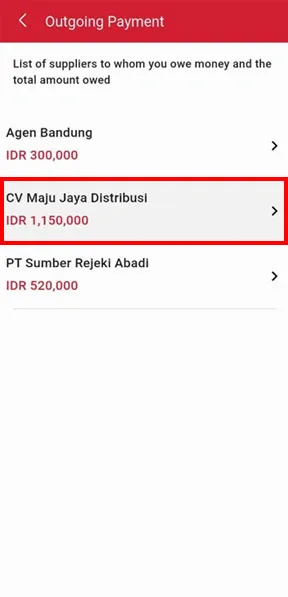
Select the supplier you want to make a payment to.
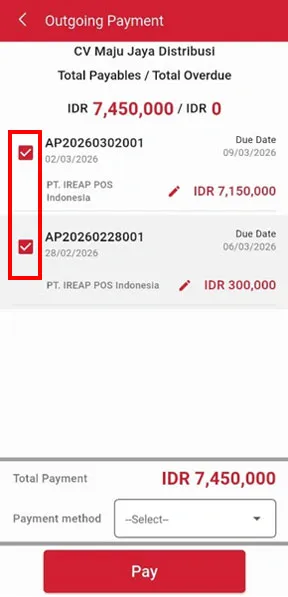
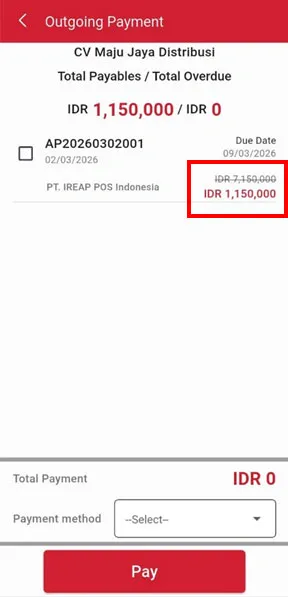
Choose the purchase invoice(s) you want to pay.
NOTE:
You can select one invoice or multiple invoices at once.
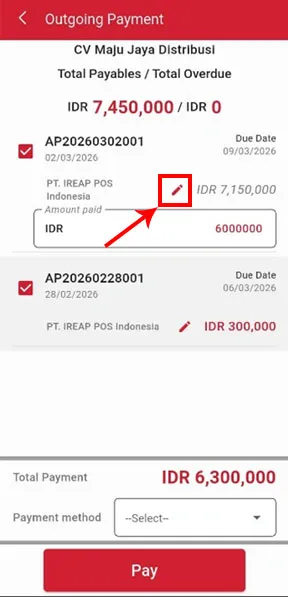
You may edit the payment amount.
NOTE:
If you want to make a partial payment, you can edit the amount accordingly. However, if the payment amount is the same as the invoice amount, you do not need to edit it. You can skip this step.
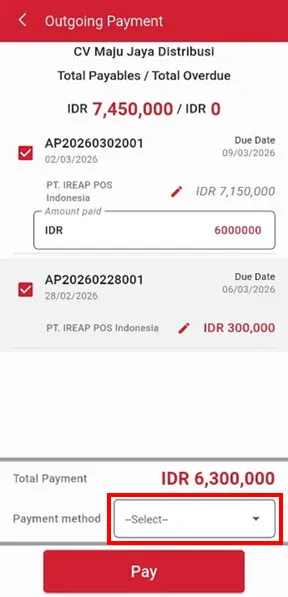
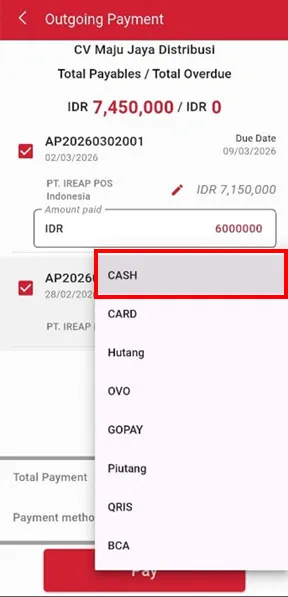
After selecting the invoice(s) to be paid, choose the payment method and click Pay.
NOTE:
If you cannot find your preferred payment method, you can create it first by following the guide on how to use various payment methods.
Make sure the list of invoices being paid is correct, then click Confirm Payment.
NOTE:
You can return to the previous page if there is any mistake in the list.
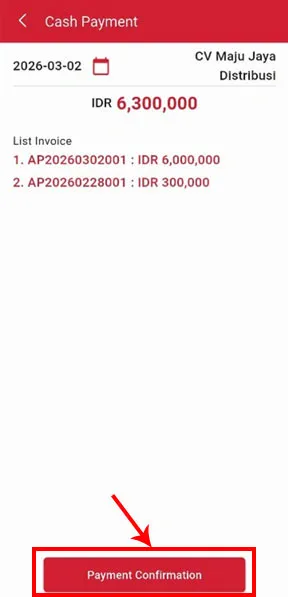
Congratulations! Your outgoing payment has been successfully created.
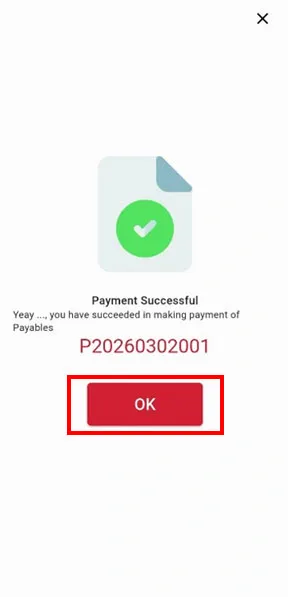
Please check the Outgoing Payment menu again to see the remaining payable balance to the supplier. Repeat the same steps whenever you make installment payments or settle the remaining balance.
iREAP POS : iREAP stand for Integrated Retail Application, is an application designed and developed to help you managed and run store operation, consists of Point of Sale / Cashier system and inventory control system.