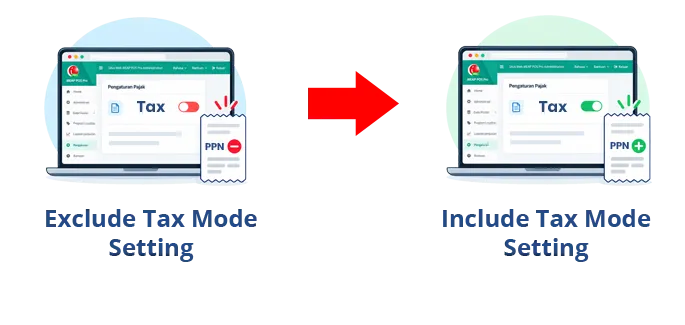


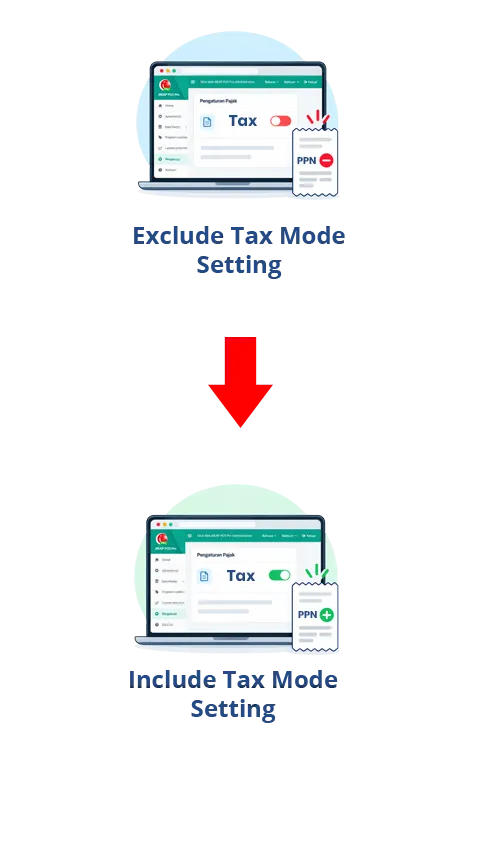
In iREAP POS Pro, tax is calculated for each individual item. iREAP POS Pro also provides settings to determine whether tax is included in or excluded from the selling price, using Include Tax and Exclude Tax modes.
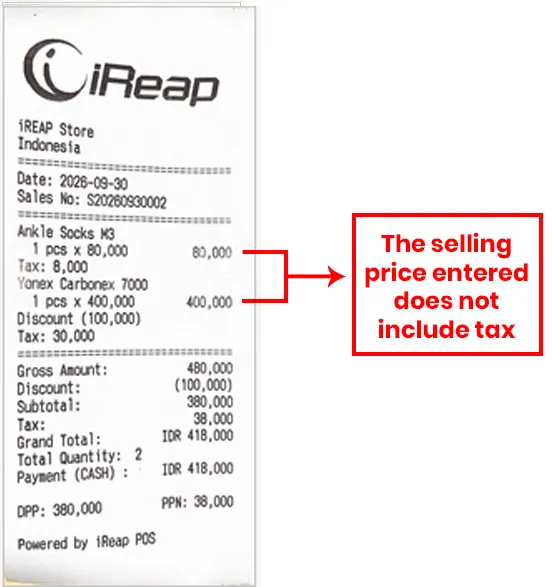
The Include Tax mode is used when the selling price entered already includes tax. The Exclude Tax mode is used when the selling price entered does not include tax, so the tax will be calculated separately on top of the selling price.
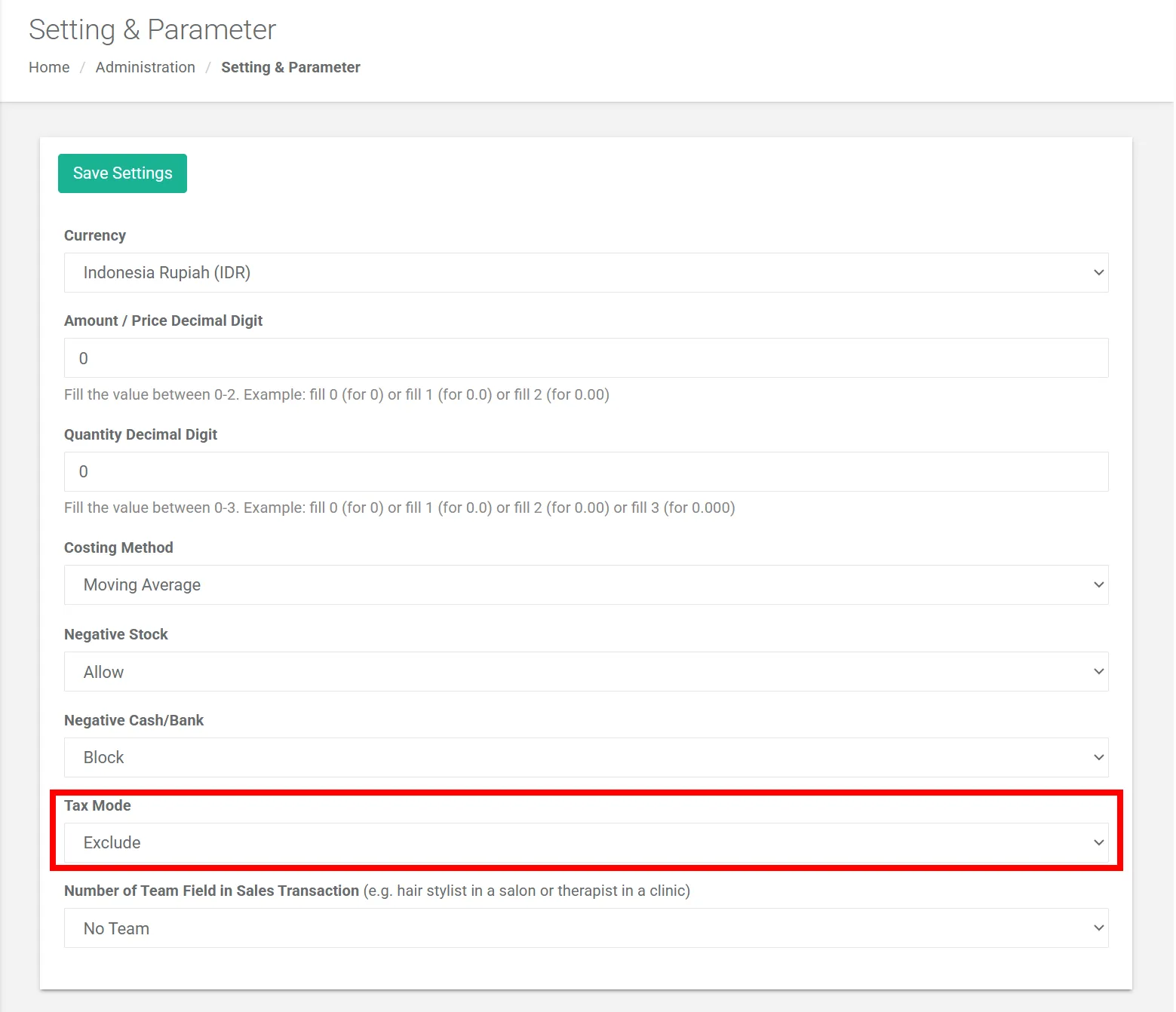
By default, the tax setting in iREAP POS Pro is set to Exclude Tax.
To change the tax setting:
Log in to the web admin at pro.ireappos.com/login
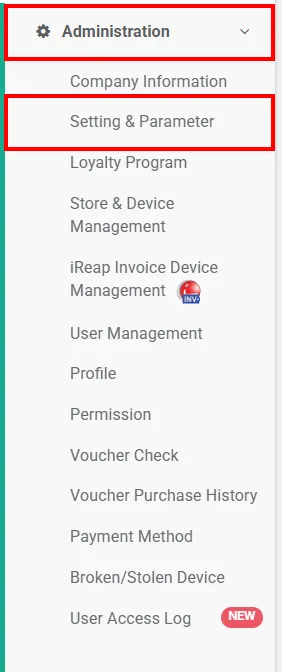
Click the Administration menu > Settings & Parameters.
Then change the tax mode to the one you want to use (Include Tax or Exclude Tax). Click Save Settings to apply the changes.
This HowTo guide explains how to use the Exclude Tax and Include Tax settings for item selling prices in iREAP POS Pro.
NOTE:
Before making a transaction with tax, make sure the Tax percentage has been entered for each item.
ALSO READ:
How to Add Items
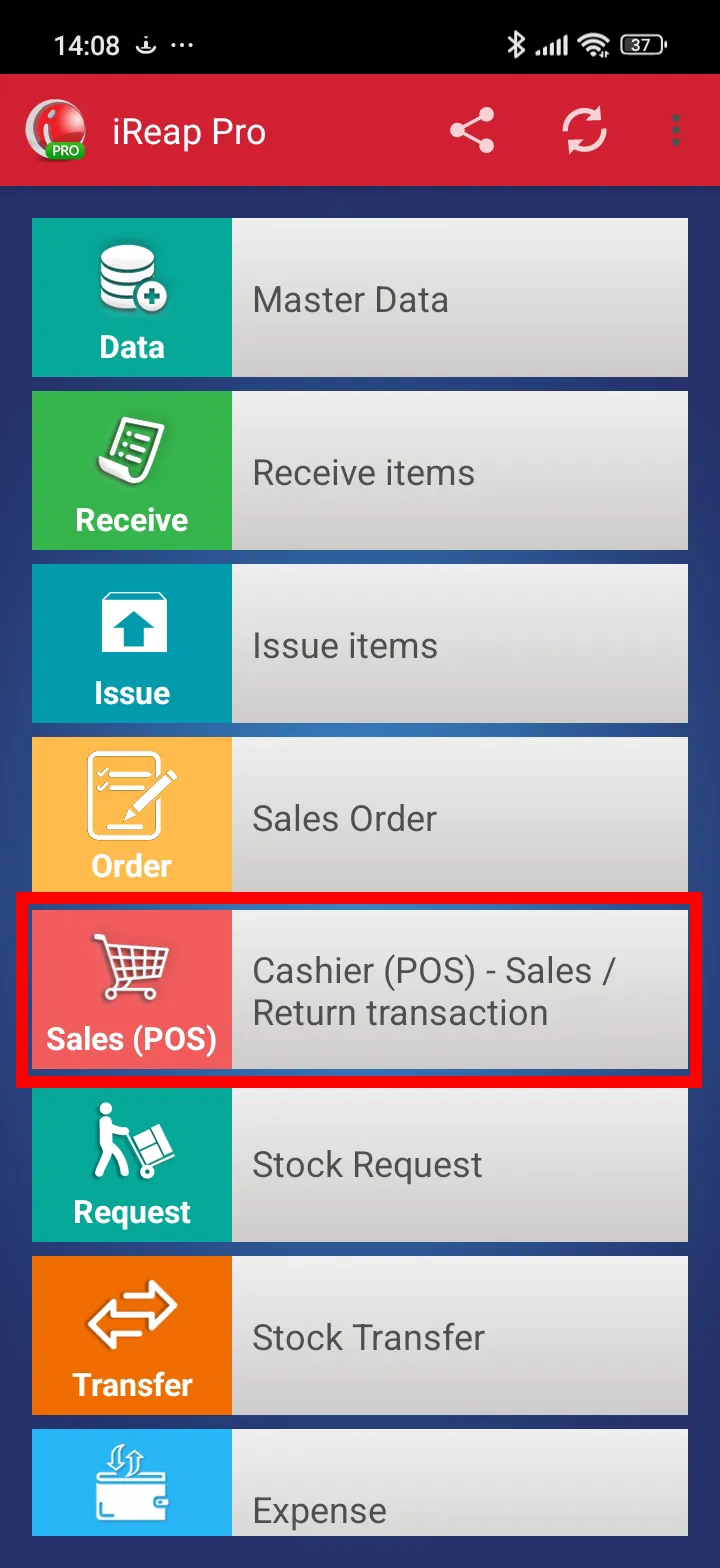
Open the iREAP PRO application.
Make a sales transaction as usual through the Sales (POS) menu or Cashier (POS) > Sales/Return Transaction.
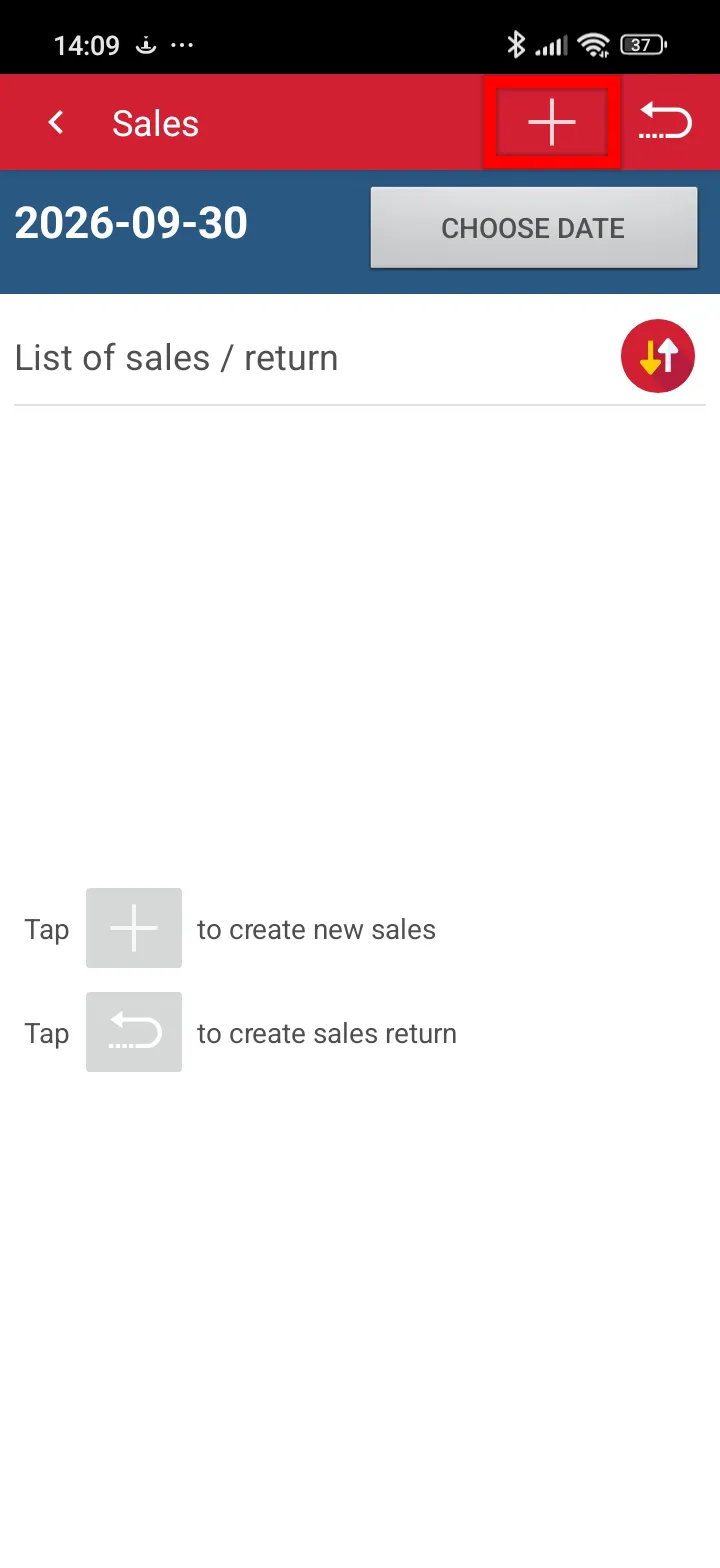
Click the + button to create a new sales transaction.
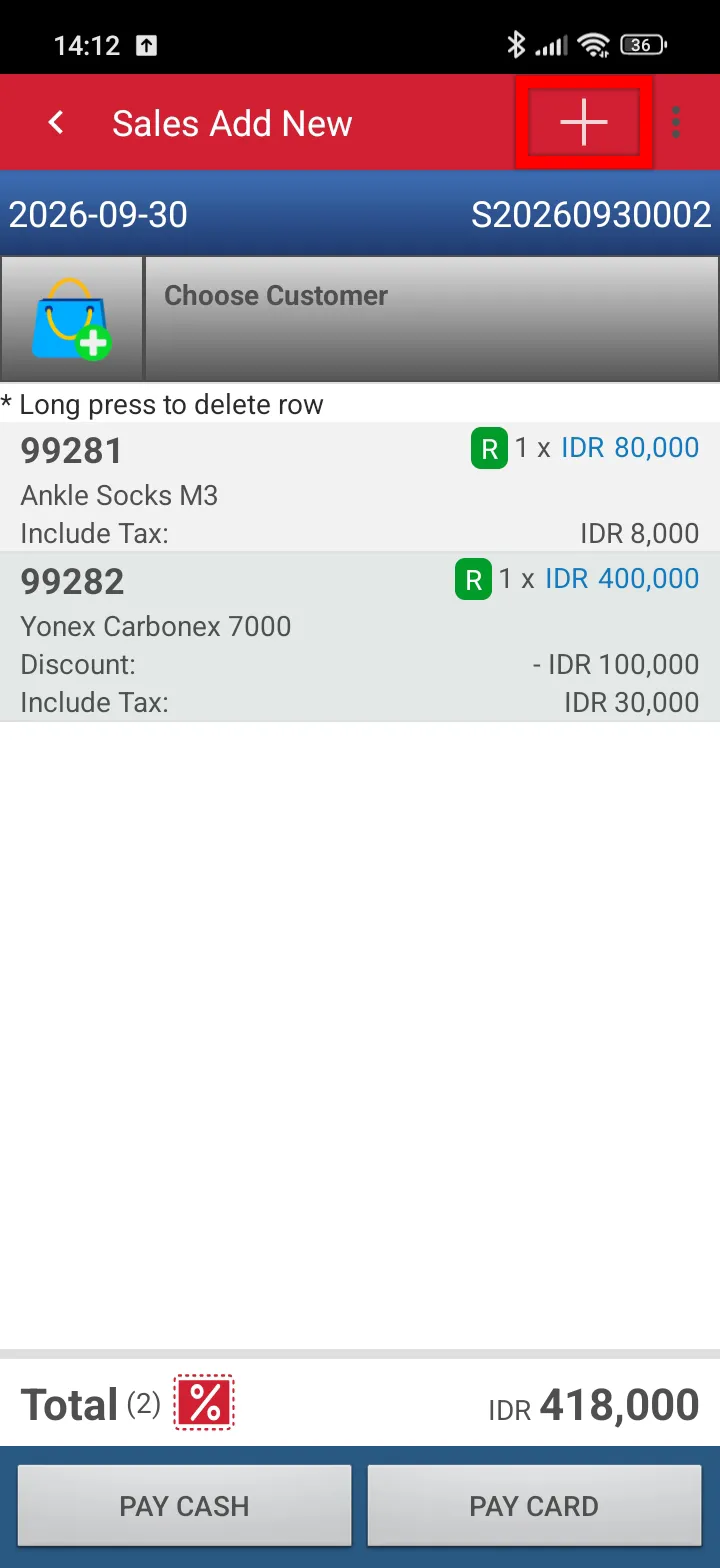
Click the + button to select the item you want to sell.
Complete the payment and confirm the payment.
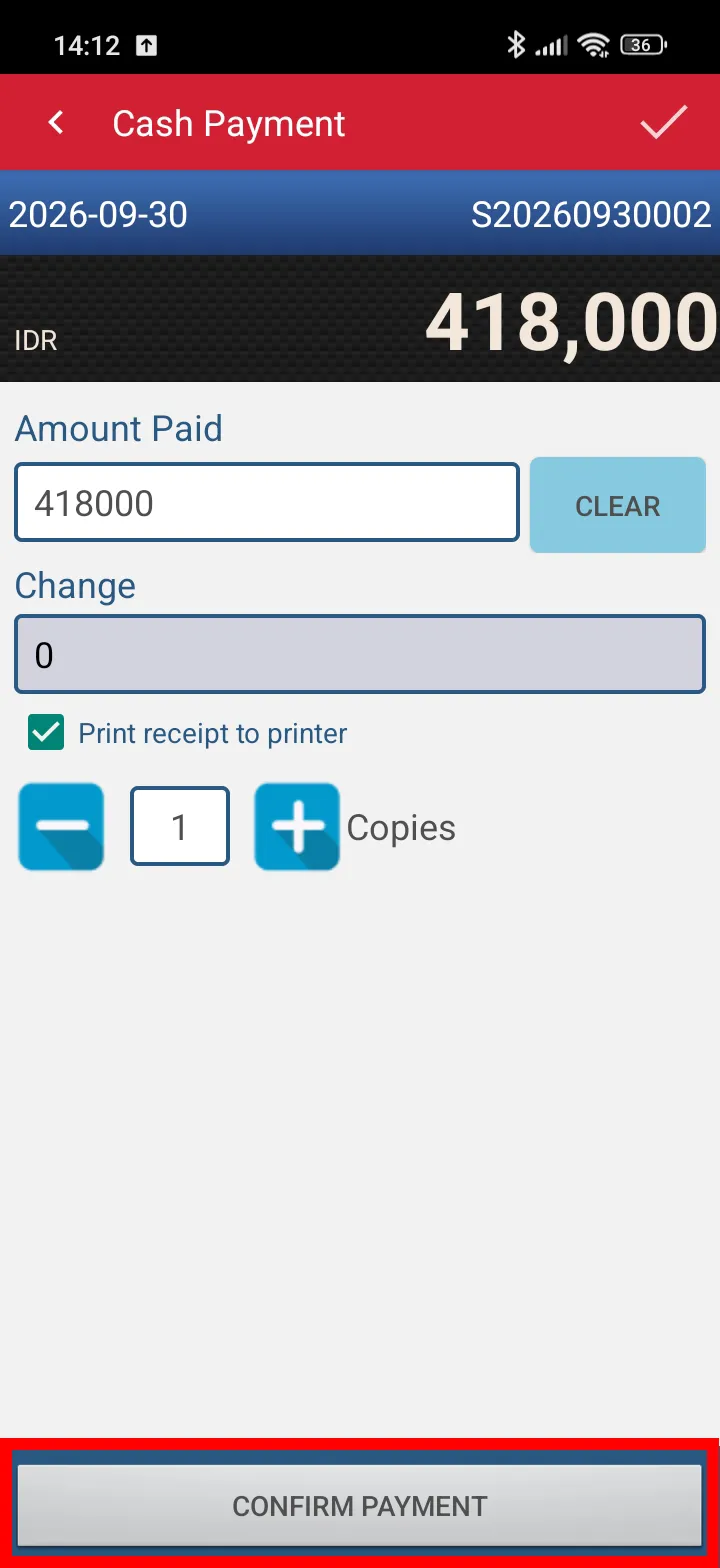
Congratulations! You have successfully completed a sales transaction using the Exclude Tax setting.
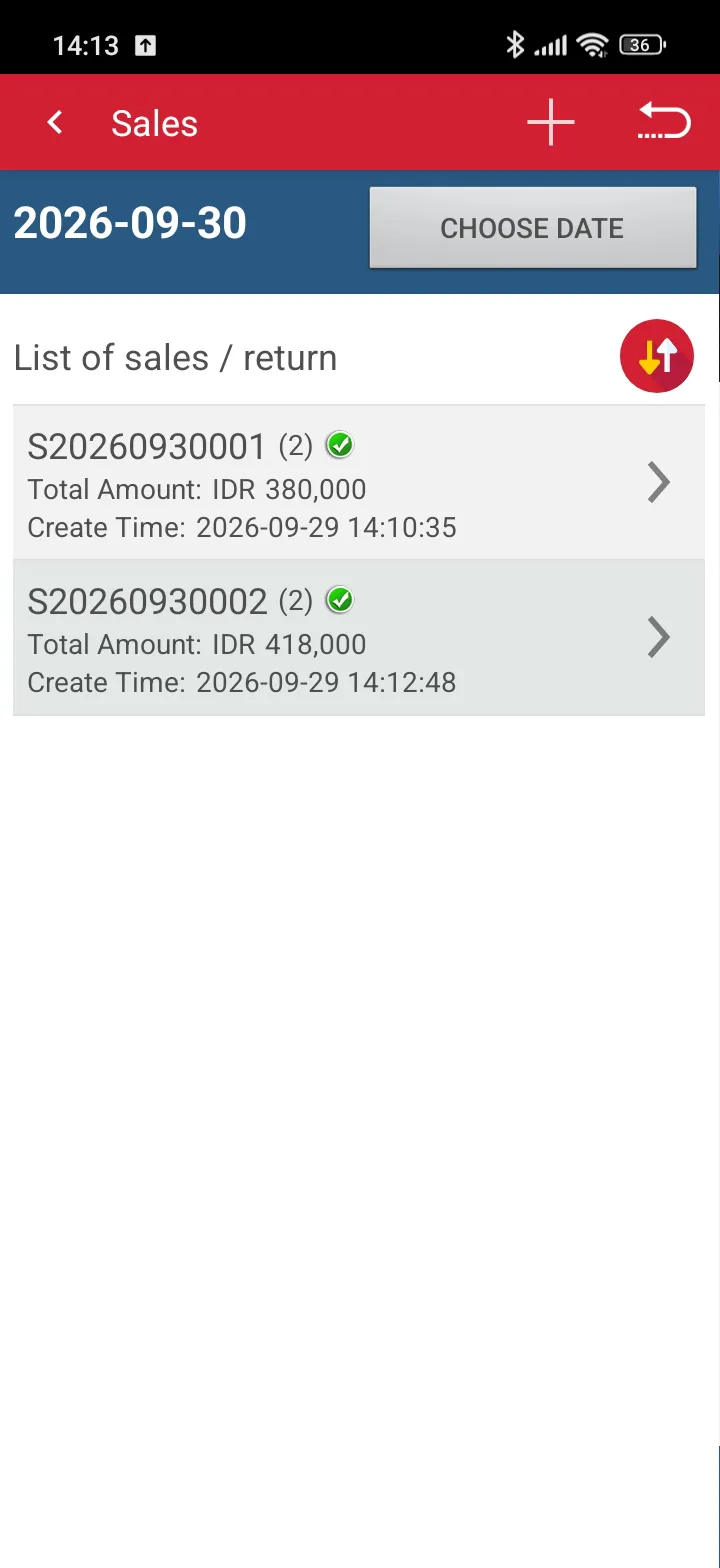
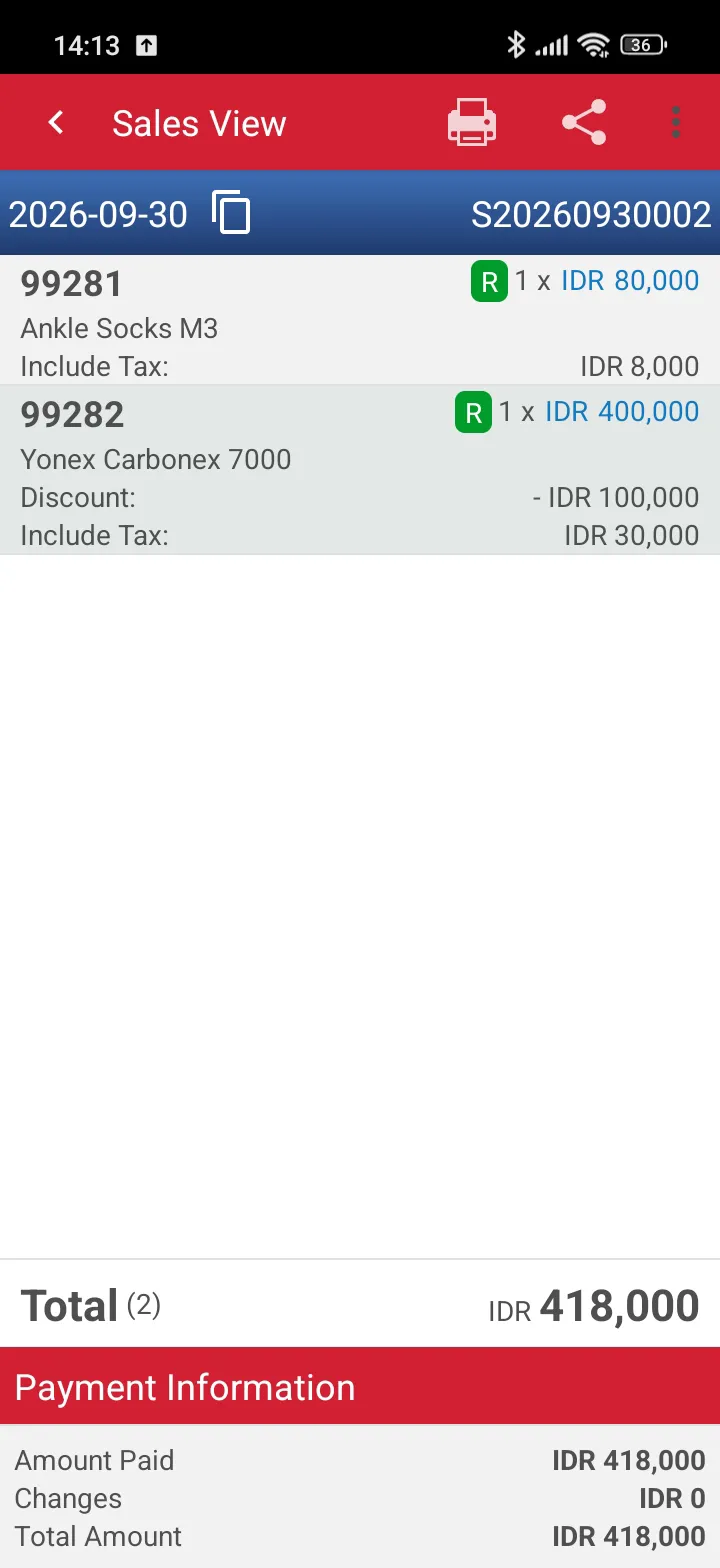
Click the transaction document to view the sales transaction details using the Exclude Tax setting.
The following is an example of a sales receipt using the Exclude Tax setting.
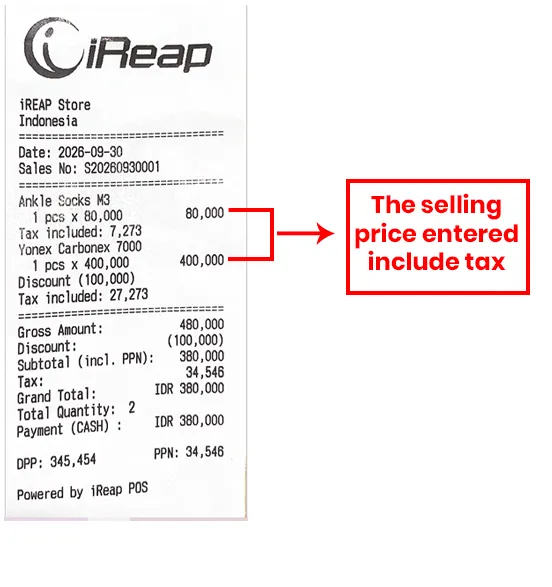
With the Include Tax setting, the selling price entered already includes tax.
Open the iREAP PRO application.
Make a sales transaction as usual through the Sales (POS) menu or Cashier (POS) > Sales/Return Transaction.
Click the + button to create a new sales transaction.
Click the + button to select the item you want to sell.
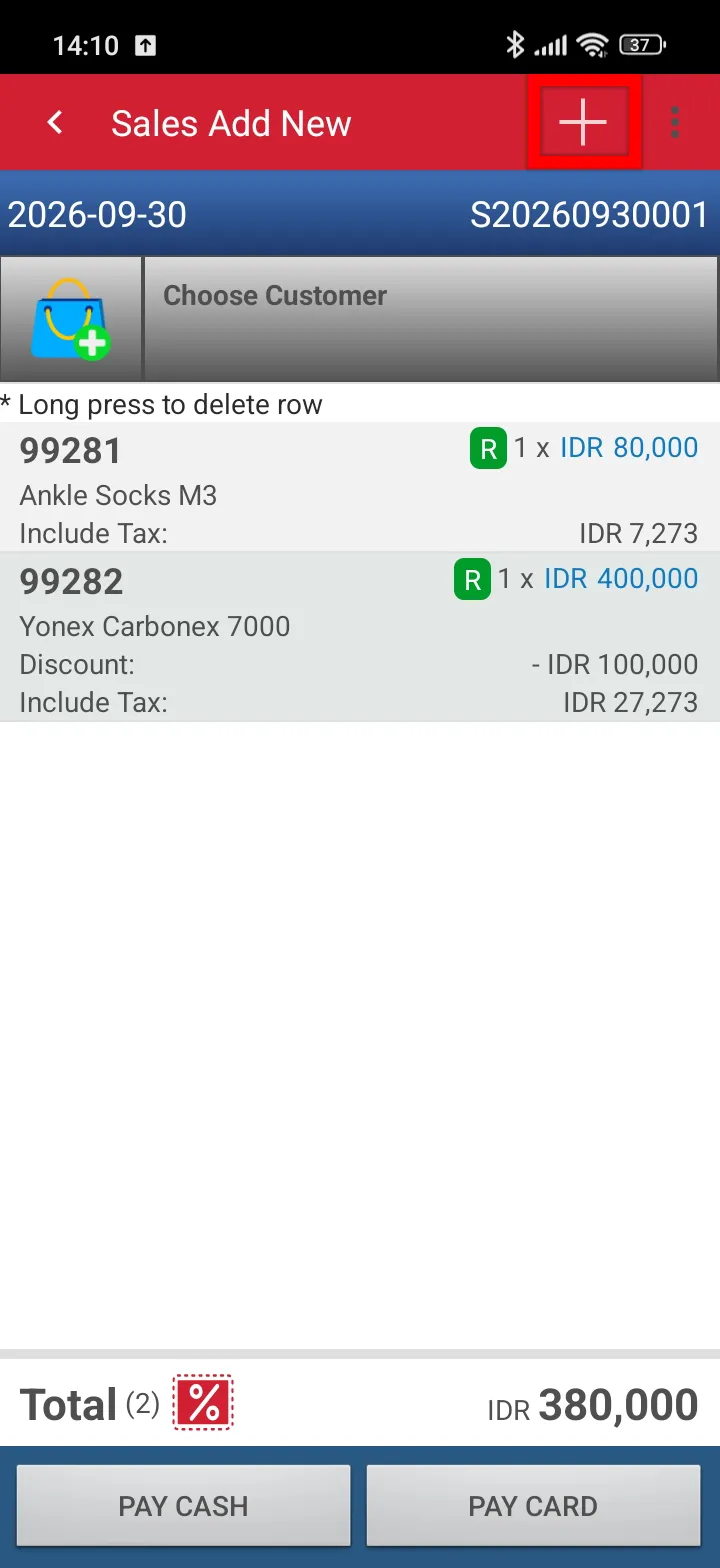
Complete the payment and confirm the payment.
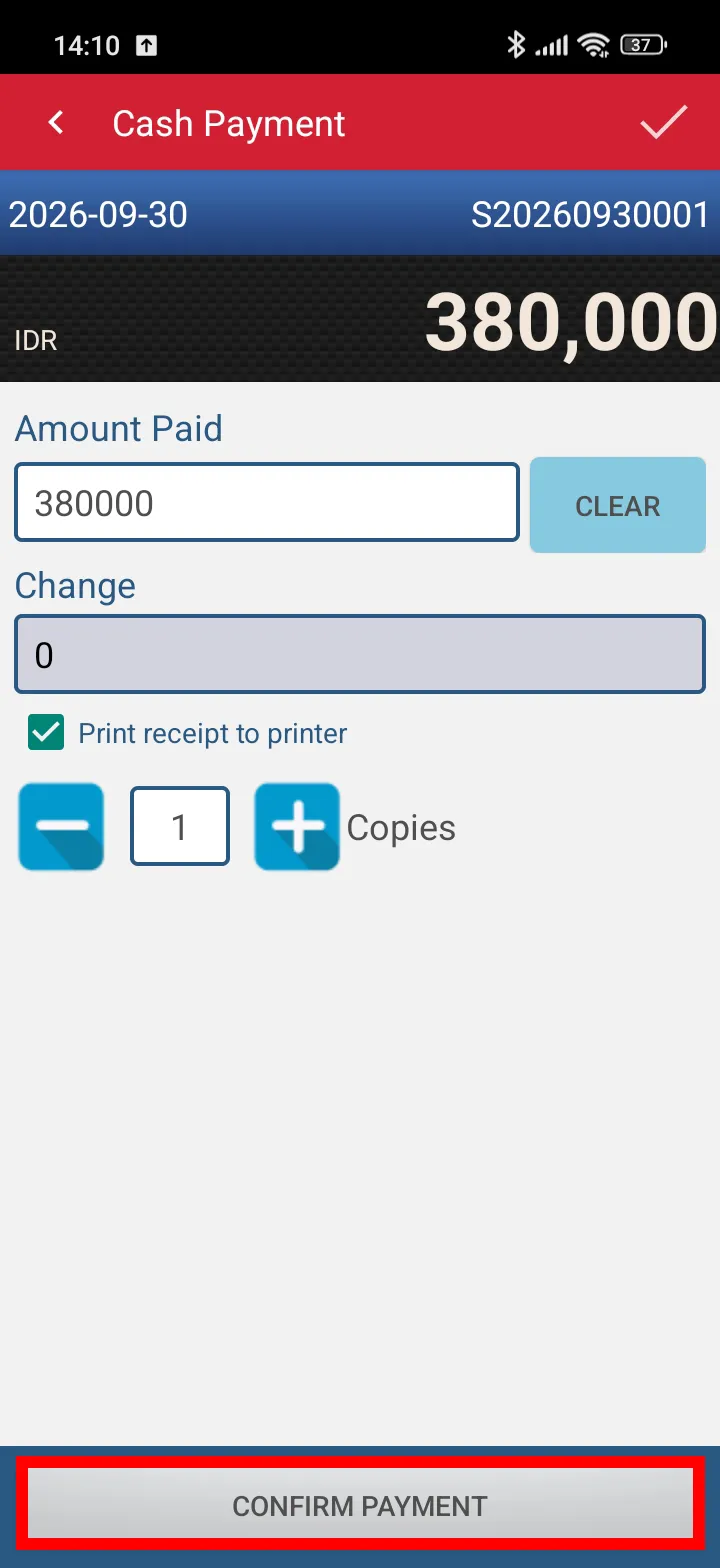
Congratulations! You have successfully completed a sales transaction using the Include Tax setting.
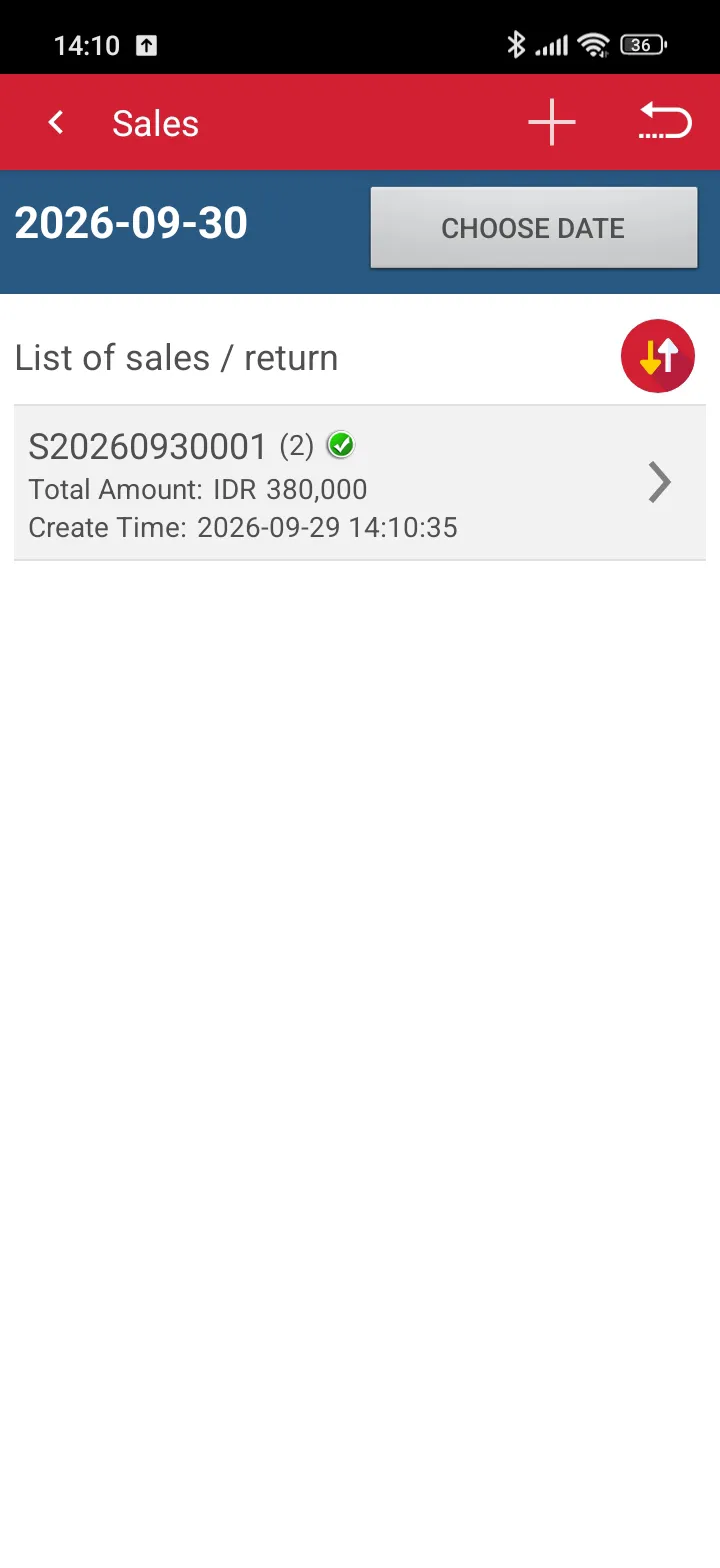
Click the transaction document to view the sales transaction details using the Include Tax setting.
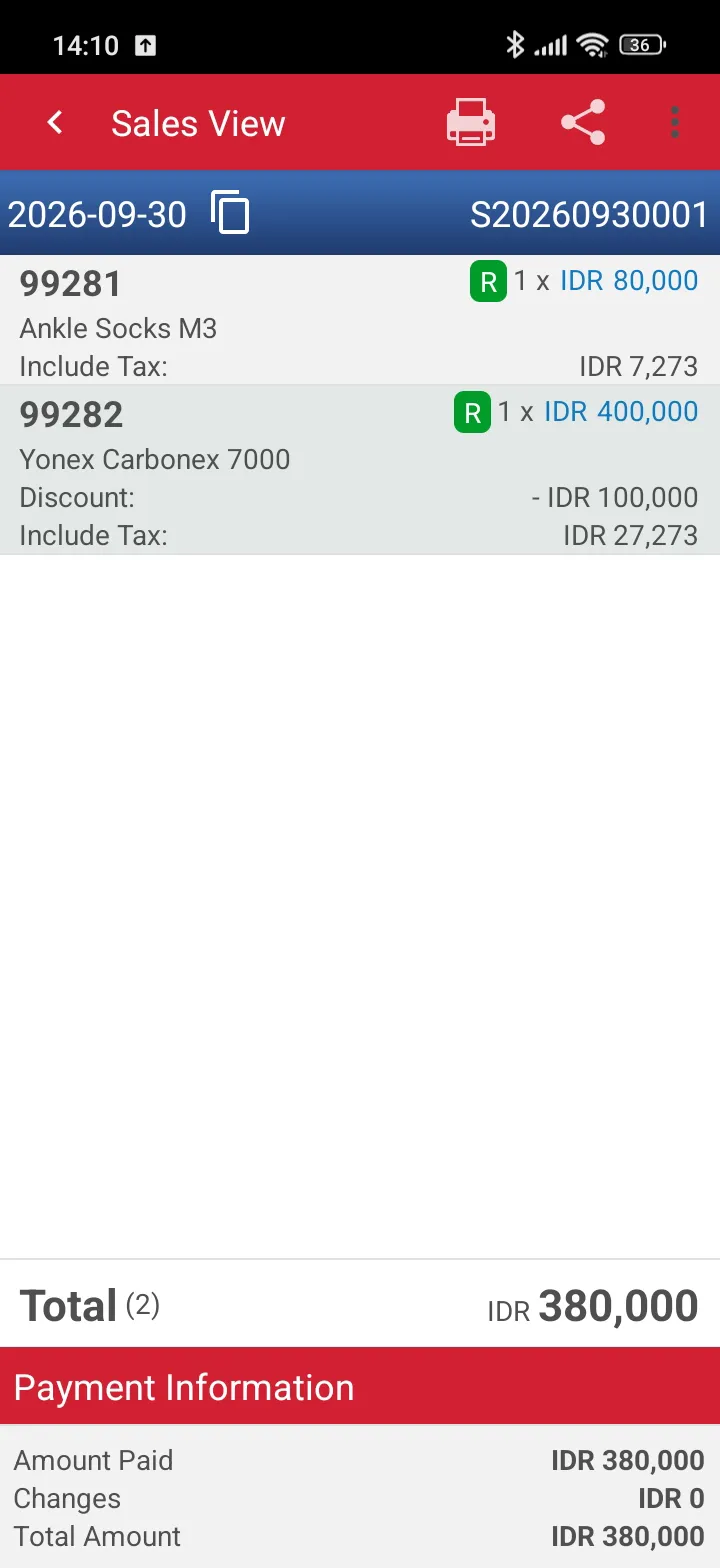
The following is an example of a sales receipt using the Include Tax setting.
iREAP POS : iREAP stand for Integrated Retail Application, is an application designed and developed to help you managed and run store operation, consists of Point of Sale / Cashier system and inventory control system.