The Rounding feature in iREAP POS Pro allows you to adjust the total sales transaction amount according to your store's needs.
The purpose of the rounding setting is to simplify the payment process by adjusting the total transaction amount to a specified rounding value. This makes payment amounts more practical, especially for cash transactions, and helps cashiers process payments more easily.
Follow the steps below to set up the Rounding feature in iREAP POS Pro:
Open your browser and log in at pro.ireappos.com/login
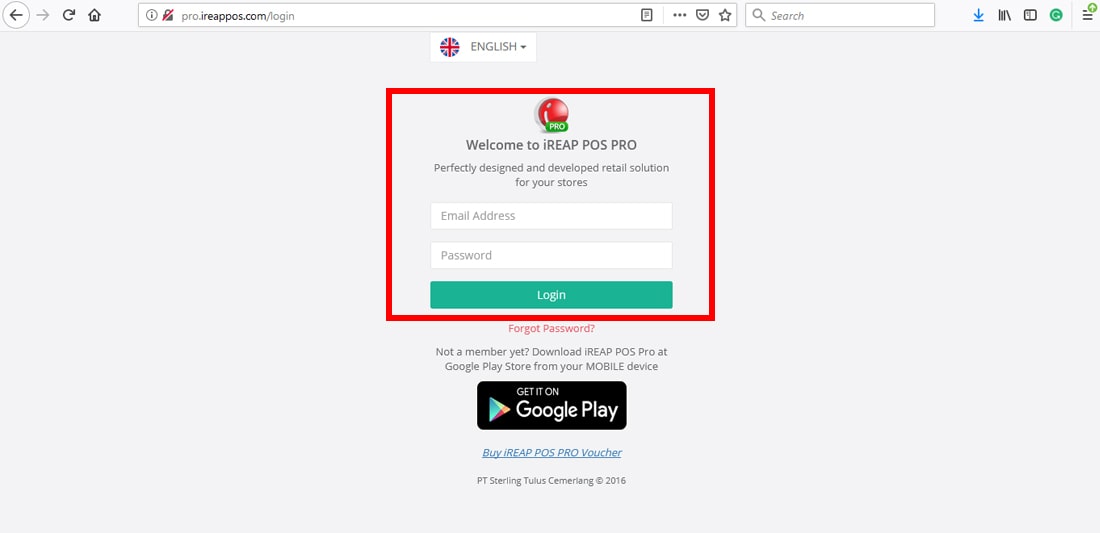
Enter your email address and password using your Administrator account. This is the email address you originally registered to use iREAP POS Pro or iREAP Invoice.
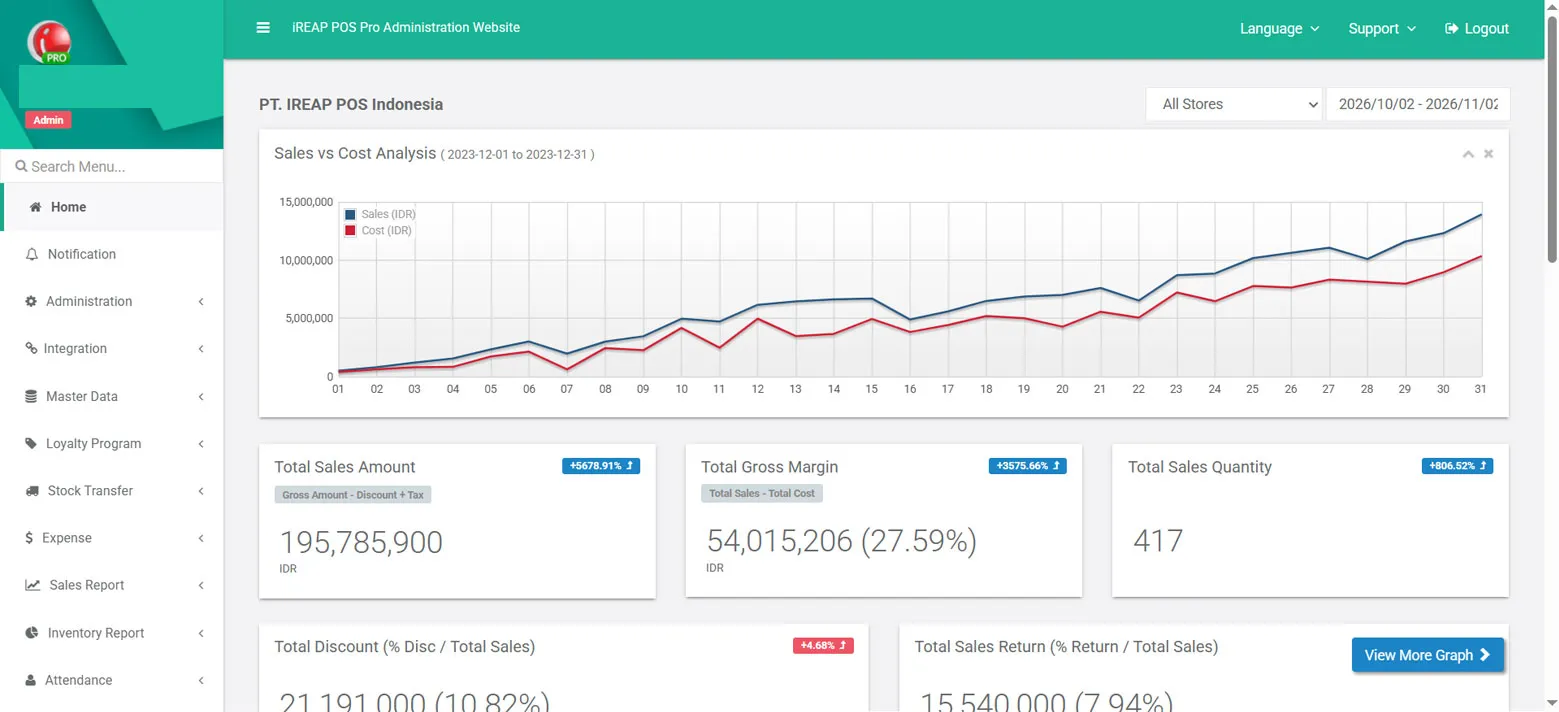
After logging in successfully, you will be directed to the main page of your web dashboard.
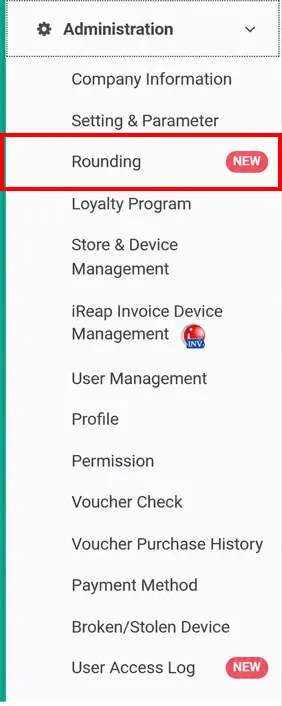
Go to Administration > Rounding.
The Rounding Settings page will display the following options. The letters A to E in the explanation below match the red labels in the screenshot.
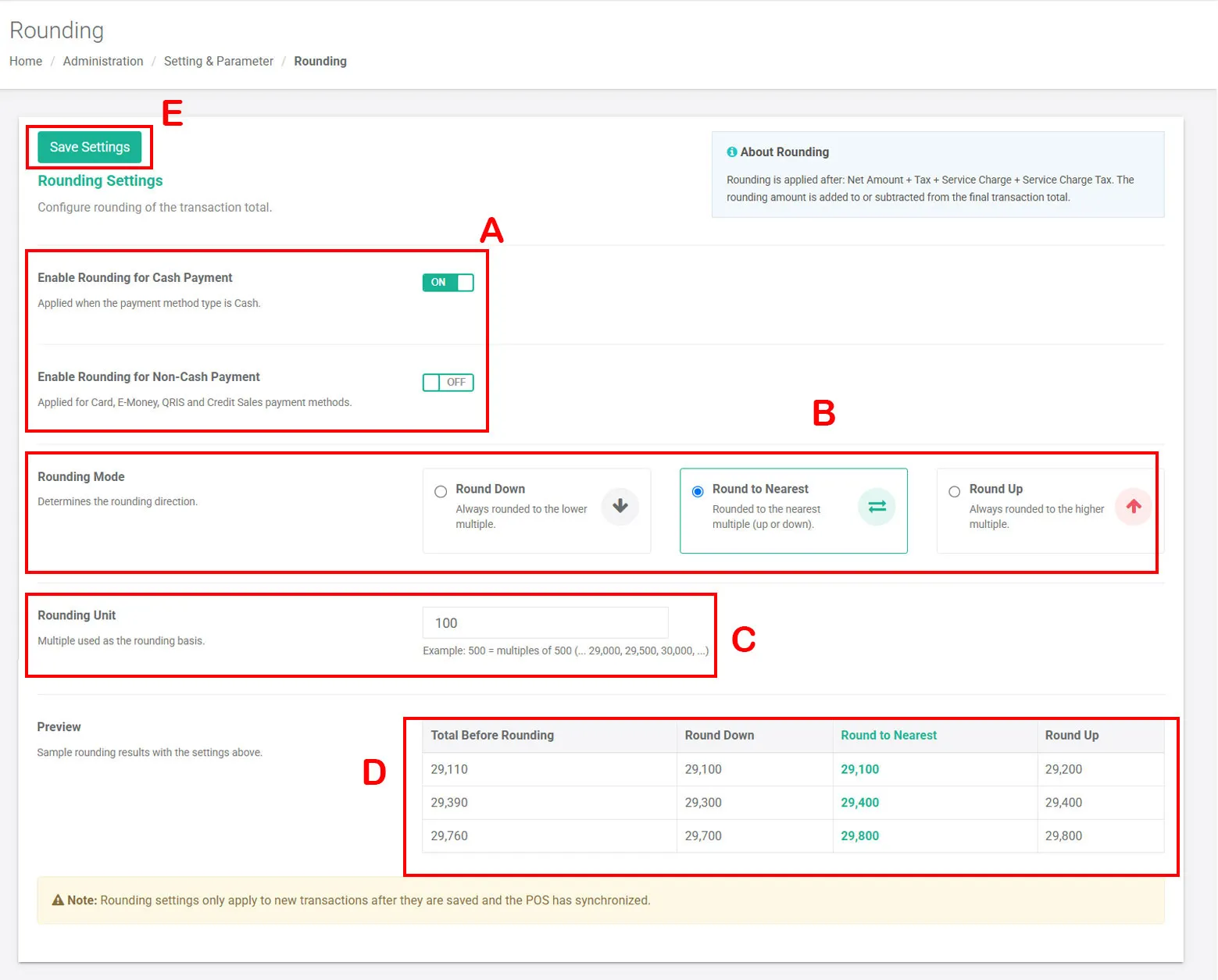
Tip: click a lettered area in the screenshot to jump to its explanation.
Enable Rounding
There are two options to enable rounding based on the payment method:
Enable the options according to your store's needs. If you do not want rounding to apply to a particular payment method, leave the corresponding setting OFF.
Select the Rounding Mode
Three rounding modes are available to suit your store's needs:
Set the Rounding Unit
Enter the Rounding Unit according to your store's needs. This value determines the amount by which the total transaction will be rounded. For example, if you set the Rounding Unit to IDR 100, the transaction amount will be rounded to a multiple of IDR 100, depending on the selected rounding mode.
Check the Rounding Preview
The Preview Example section displays a simulation of how the transaction amount will change based on the selected rounding mode.
Review the Total Before Rounding, Round Down, Round to Nearest, and Round Up columns to ensure the results meet your store's needs.
Save the Settings
After completing all the settings, click Save Settings.
NOTE:
Rounding is applied after the following calculation: Net Amount + Tax + Service Charge + Service Charge Tax. The rounding amount is then added to or subtracted from the final transaction total.
Rounding settings apply only to new transactions after the settings have been saved and the POS application has synchronized.
Make sure the payment methods, rounding mode, and Rounding Unit are configured correctly before processing transactions.
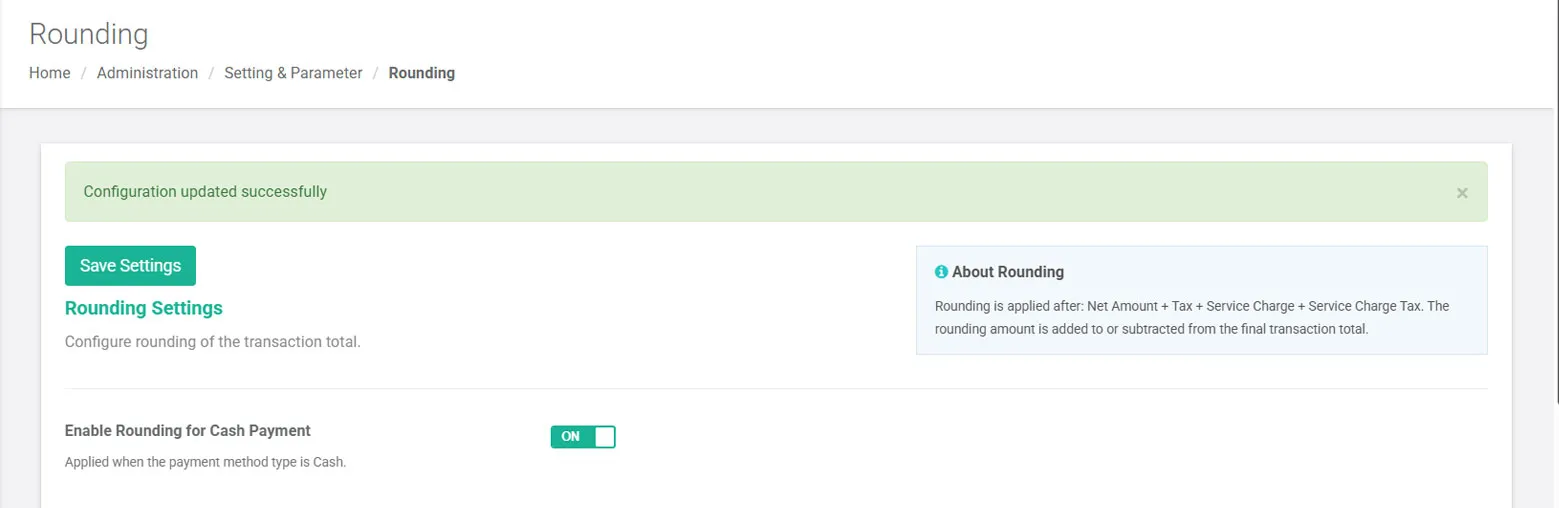
After clicking Save Settings, a confirmation message will appear indicating that the rounding settings have been saved successfully.
Open the iREAP POS Pro application and create a sales transaction to check whether the rounding settings have been applied. If rounding is not applied, tap the Synchronization button in the application first. Then, try creating a new transaction again to verify the rounding settings.
iREAP POS : iREAP stand for Integrated Retail Application, is an application designed and developed to help you managed and run store operation, consists of Point of Sale / Cashier system and inventory control system.